Bulk Data
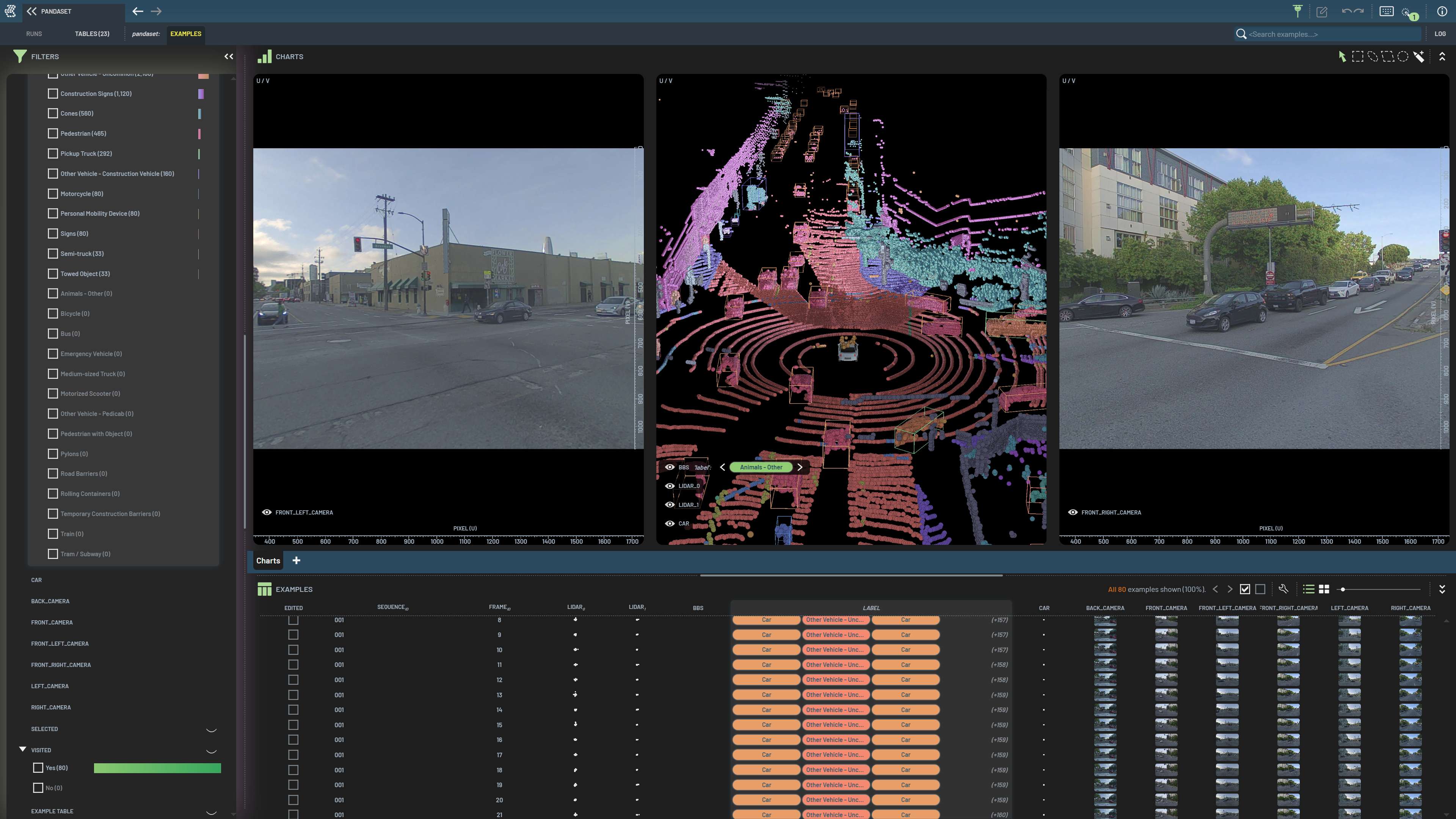
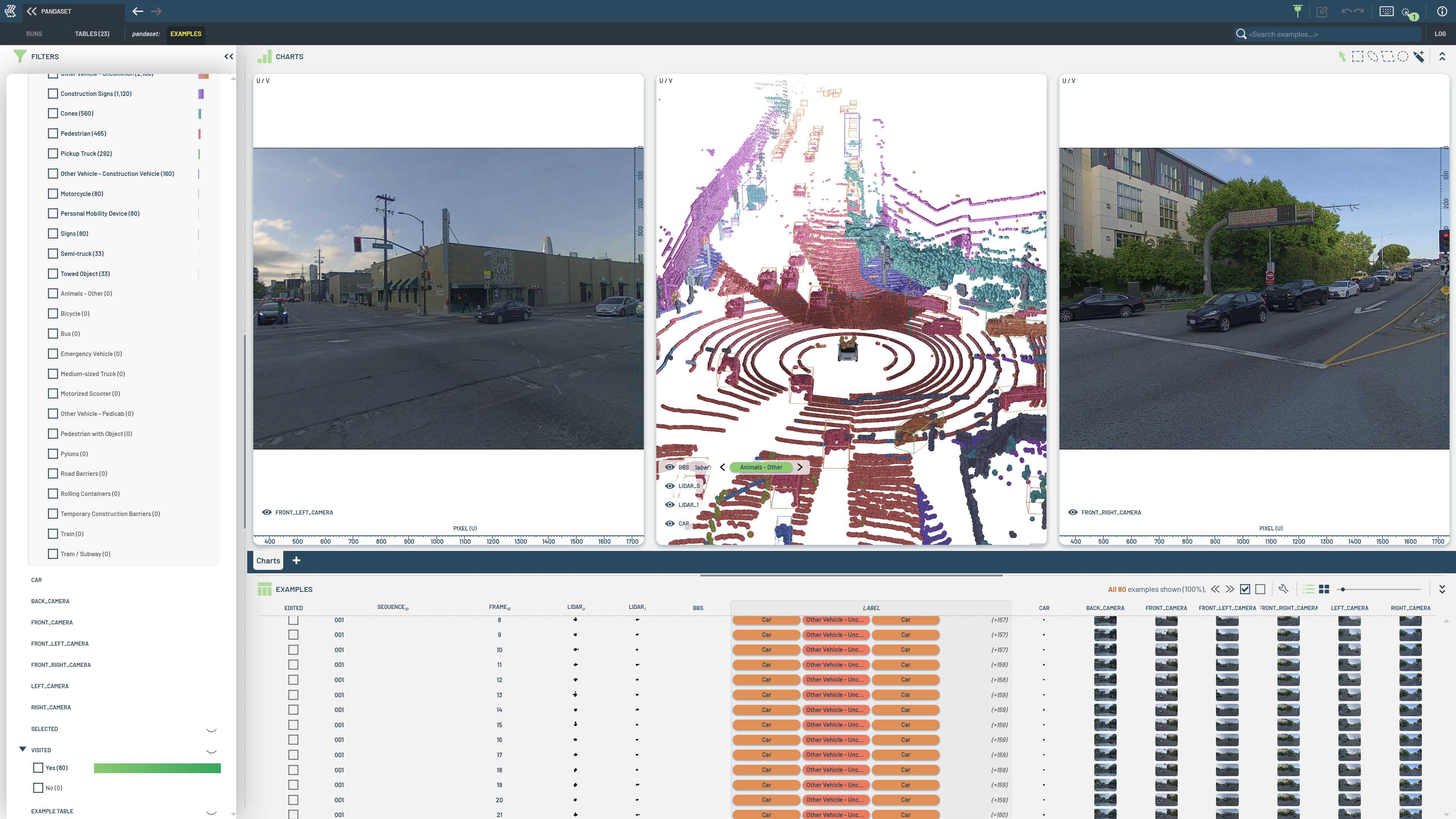
Bulk data (also referred to as external data) is data stored externally rather than directly in a 3LC Table. The Table holds only URL references, while the actual data lives in separate files. This keeps Tables lightweight — when viewed in the Dashboard, only the data needed for the current view is fetched.
When you use a convenience schema like ImageSchema() or ExternalNumpyArraySchema(), bulk data is handled
automatically: data-writing paths externalize data on write, and the sample view (table[i])
loads it back on read.
Controlling Storage Location
The default storage location for bulk data is relative to the table. To customize it, use the bulk_data_location
parameter on the schema:
schema = {"image": tlc.schemas.ImageSchema(bulk_data_location="/data/images")}
External Storage for Arrays
Primitive schemas with sample_type="numpy_array" or sample_type="torch_tensor" store arrays inline (nested lists in
the row). For per-row file storage, use ExternalNumpyArraySchema or
ExternalTorchTensorSchema, which write each array as a separate
.npy file:
# Inline: arrays stored as nested lists in the row
schema = {"embedding": tlc.schemas.Float32Schema(shape=(512,), sample_type="numpy_array")}

# External: each array saved as a .npy file
schema = {"embedding": tlc.ExternalNumpyArraySchema(shape=(512,))}
Geometry (Chunked Storage)
Experimental Feature
Geometry bulk data is an experimental feature. APIs and usage patterns may change in the future.
Large structured data like point clouds (LiDAR, radar) uses chunked storage, where values are packed into shared
binary streams. Geometry schemas expose this through the is_bulk_data parameter.
Example
The following example shows how to store a single point cloud in a 3LC Table using geometry bulk data.
import numpy as np

import tlc

# Create a point cloud
points = np.random.rand(1000, 3).astype(np.float32)

# Define a schema for the column containing the point cloud
schema = tlc.data_types.Geometry3D.schema(
    is_bulk_data=True,
)

# Create a Geometry3D object for the point cloud
instances = tlc.data_types.Geometry3D.create_empty(x_min=-100, y_min=-100, z_min=-100, x_max=100, y_max=100, z_max=100)
instances.add_instance(vertices=points)

# Create a TableWriter for writing the point cloud
writer = tlc.TableWriter(
    table_name="point_cloud",
    project_name="point_cloud_project",
    schema={"points": schema},
)

# Write the point cloud to disk
writer.add_row({"points": instances})
table = writer.finalize()

# The Table can now be loaded and visualized in the 3LC Dashboard.
# Access the point cloud data directly through the sample view:
sample = table[0]
geometry = sample["points"]  # Geometry3D object with populated vertices

# The data read back is now a flattened array of floats.
np.testing.assert_array_equal(points.reshape(-1), geometry.vertices[0])
Limitations
Geometry bulk data is currently limited to vertices, lines, and triangles. When creating such a bulk data Table, the data will be cached in a binary format on disk. Writing bulk data Tables directly to object storage is not supported, but a bulk data Table can be copied to a remote location and will be accessible from there without any additional configuration (beyond configuring the Object Service to scan the new location).
Storage Size
Ingesting bulk data requires additional storage, so the size of the data should be considered. Monitor the size of the cached data and manage bulk data folders carefully to avoid running out of space.