Reduced Table
A reduced table is derived by applying reducing operations on a parent table. A reducing operation (e.g., average or sum) combines a number of rows that have the same reducing character into a single row, column by column. The reducing character refers to same values on the reducing column(s).
Reducing on single column
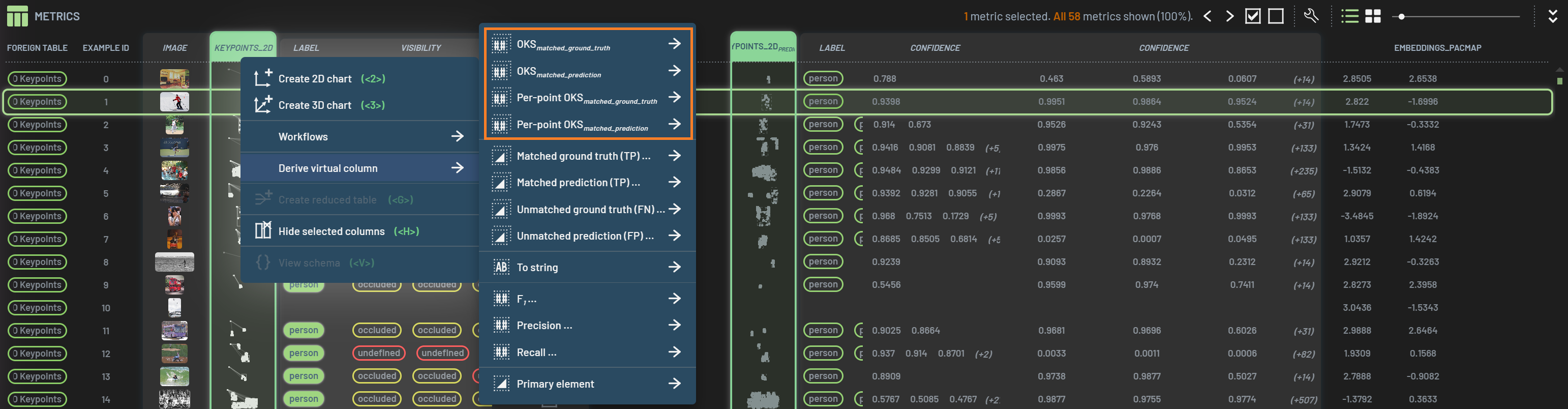
To reduce on a single column, select the column, RightClick on the column header, and select
Create reduced table in the popup menu.
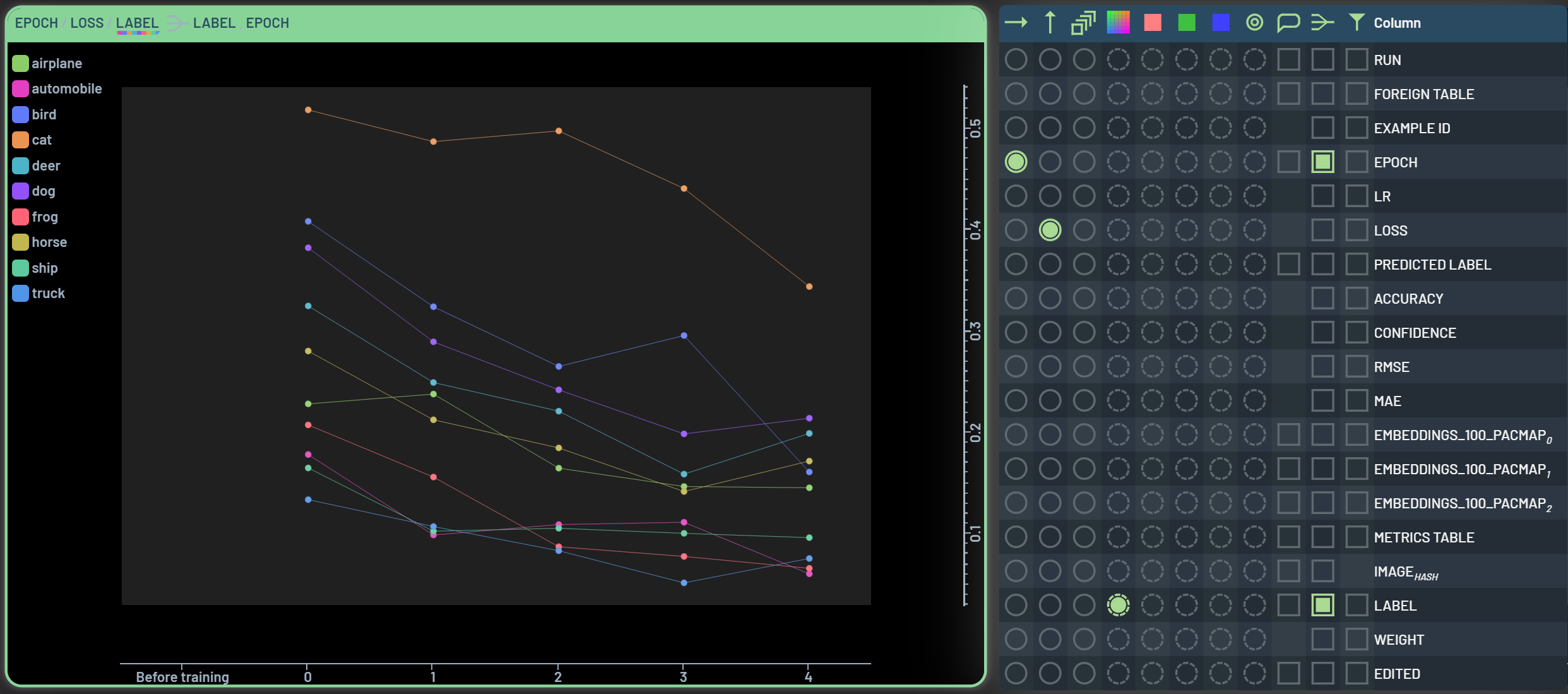
For example, if reducing on the Epoch column, the reduced table will be the results of reducing the rows that have the same epoch number. Therefore, a 5-epoch table will be reduced to a table with five rows and each row contains the reduced values for each applicable column.
When you create a reduced table, the Select reduce operations dialog lets you choose which operations, such as
average and sum, to apply to each column. You can add, remove, or change the pre-selected operations. Choosing several
operations for one column gives one reduced column per operation, e.g., accuracy_avg and accuracy_sum.
Like a subset table, the reduced table will be shown as a new tab next to the original table on the navigation bar. The
active tab is highlighted in orange. You can see the new reduced table contains five rows representing five epochs. The
columns are named after the original column and the chosen operation, e.g., metric_avg. You can plot Epoch vs a
metric column, which represents the averaged metric evolution of all samples over epochs.
Reducing on multiple columns
Reduction can also be done based on multiple columns. The reducing operations will be applied to the rows that have the
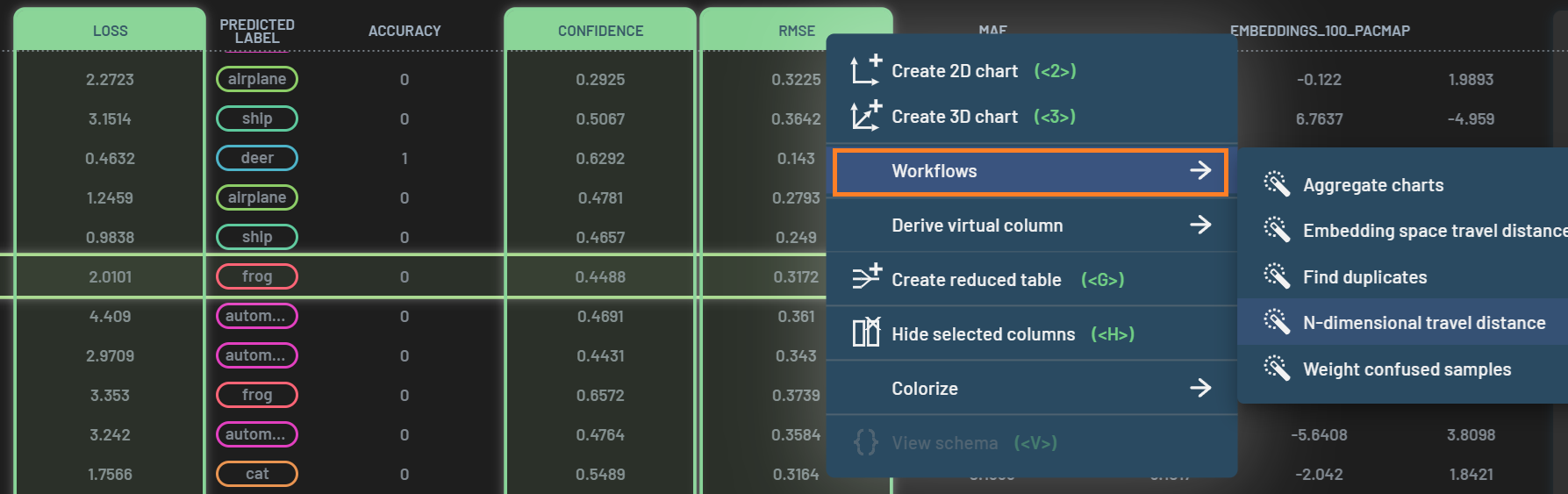
same combined values of the reducing columns. To reduce on multiple columns, select the columns,
RightClick on one of the selected column headers, and select Create reduced table in the popup
menu.
For example, if reducing on the Label and Predicted_Label columns, the reduced table will be the results of averaging the rows that have the same label-predicted label pair. Therefore, the Cifar-10 dataset will result to up to 100 rows in the reduced table. There are 99 rows in this example as one pair (automobile-deer) does not exist in this Run. You can create some confusion-matrix-like box charts in the reduced table. Please see How to create confusion matrix for how to make these charts.
In addition to the operations chosen when the reduced table was created, you can derive more operations later from
within the reduced table tab. Click the wrench icon –> Create column –> Reduced, and hover over a column name to get
the submenu listing all available operations for the column. Clicking an operation such as sum will create a
Confidence_sum column in the reduced table.
Reduced chart vs Reduced table
In the How to tweak a chart tutorial, we introduced how to make a reduced chart with
the Tweak chart dialog. It serves as a quick way to plot some reduced metrics without making a reduced table. It
computes the chosen reduce operation (average by default) for the x/y/z columns in the chart. And also, reduced charts
are dynamic, which means that the reduced values (i.e., locations of data points in the chart) will be dynamically
changed if some data points are filtered in/out.
On the other hand, the reduced table applies the chosen reducing operations to all applicable columns and is static once it’s created. You can always create another reduced table after applying some filters if needed.