User Defined Workflows
You may want to create your own workflow if you repeatedly set up the same charts, virtual columns, filters, and so on, every time you open a Run/Table. You can also export your user-defined workflows to share them with others.
Create a user-defined workflow
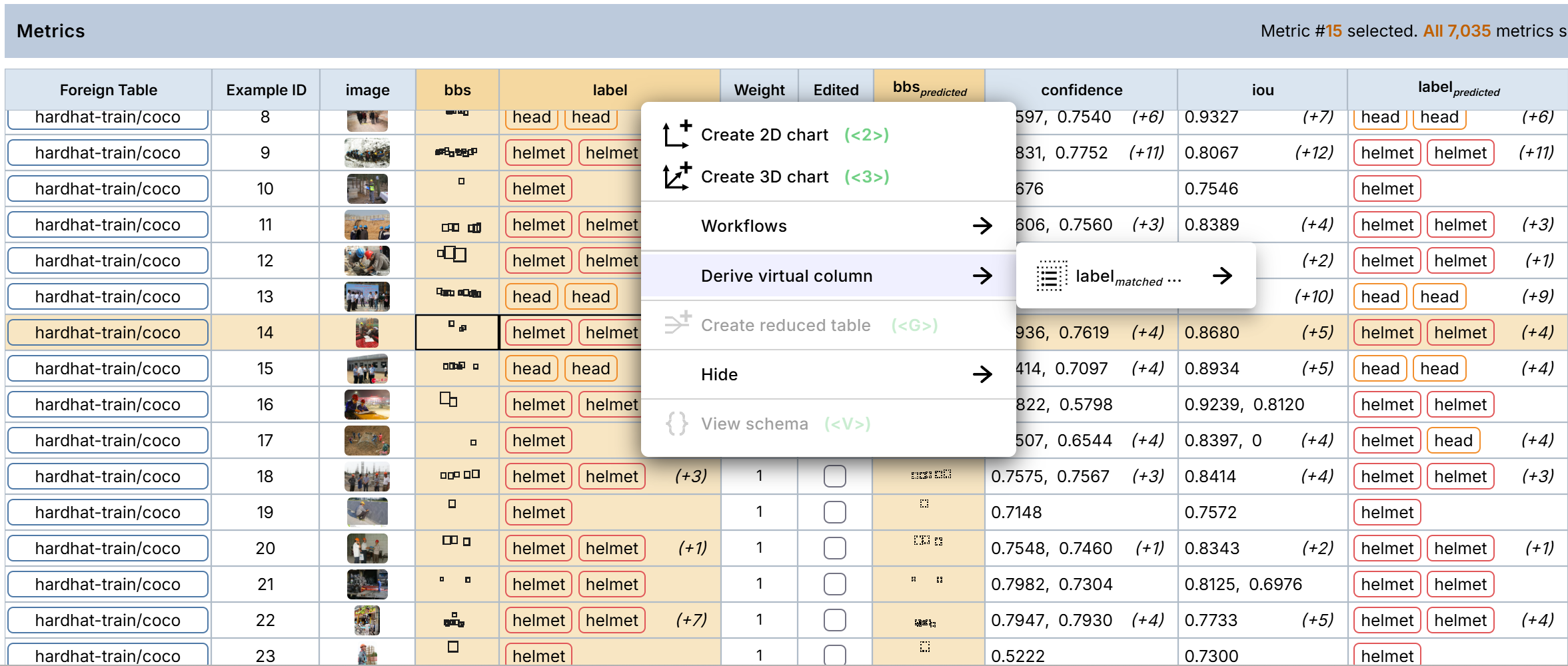
To create a user-defined workflow, RightClick on a column header or a chart’s title bar, then
select Create user-defined Workflow under Workflows in the context menu.
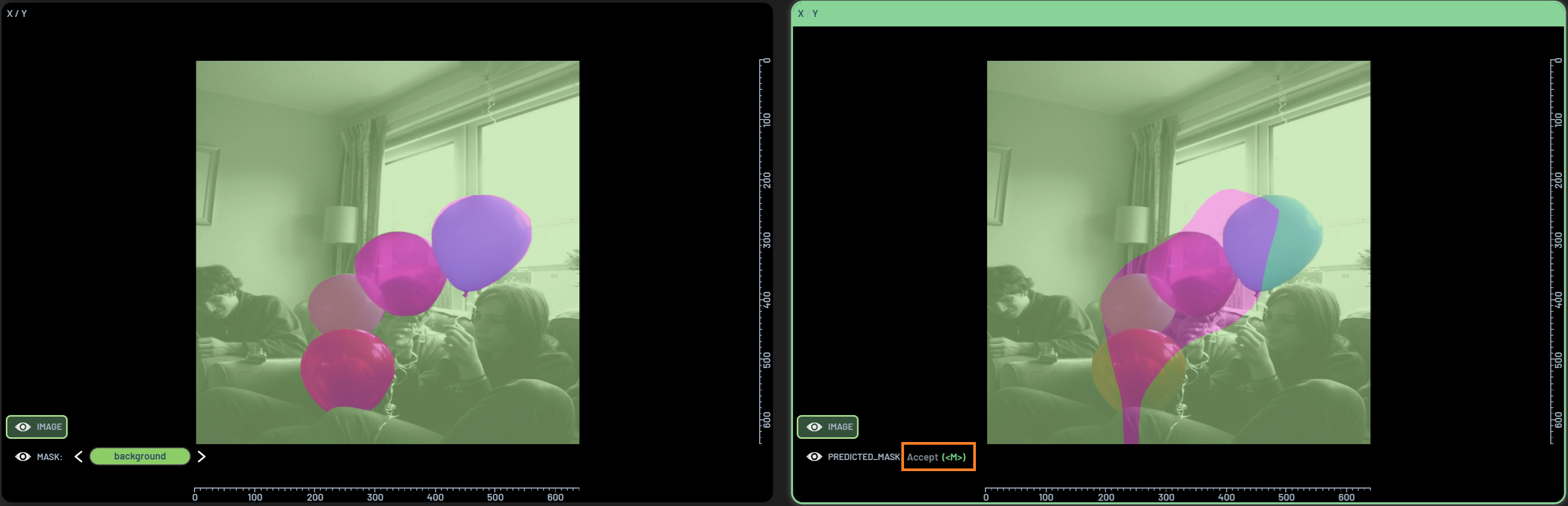
To include charts and applied filters, you need to select all of them (holding Ctrl for multi-selection) before clicking
Create user-defined Workflow. In the screenshot above, two charts and one filter are selected, and the user-defined
workflow will reproduce those same charts and filter every time it is launched.
Pinned properties can also be included into a user-defined workflow. You can update
the name and description of the workflow in the workflow card as below, and you can also delete it by clicking the X in
the top right.
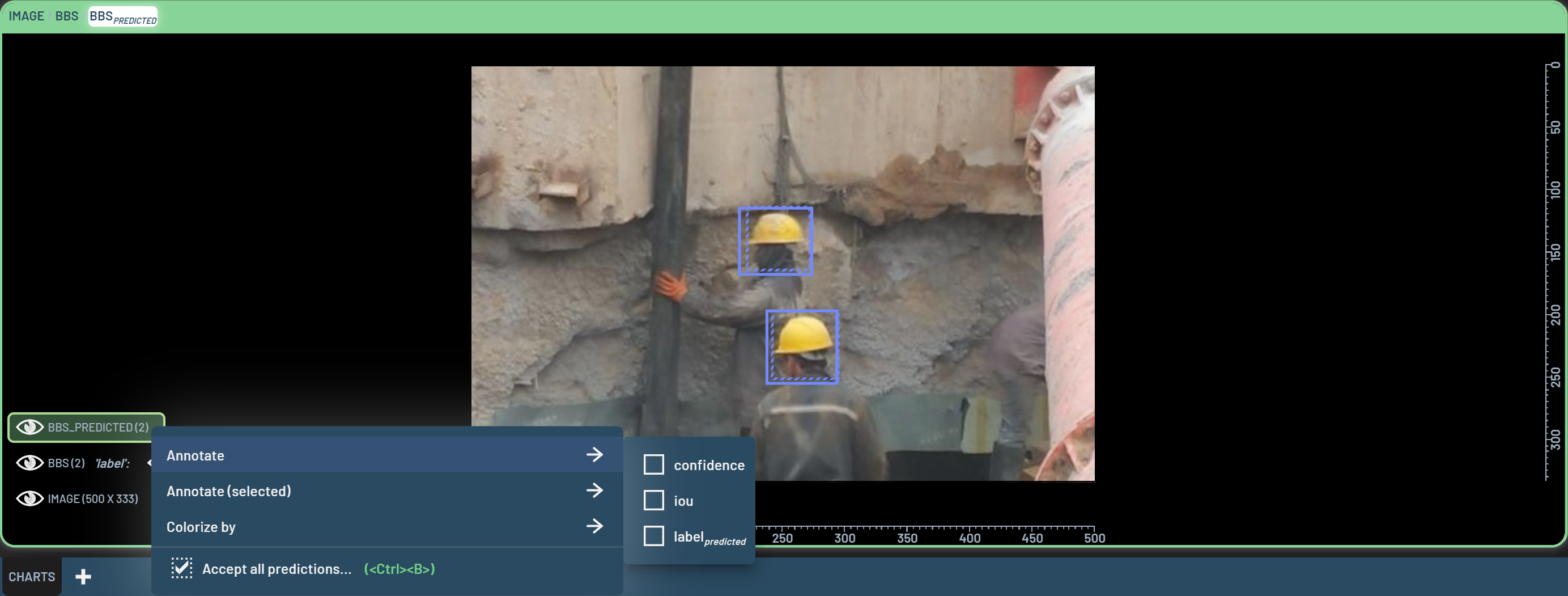
To launch the workflow you created next time, you can either start it from the Workflows window by clicking the wand icon at the upper-right corner of the Dashboard, or RightClick one of the prerequisite columns and select the workflow you created.
Export and import
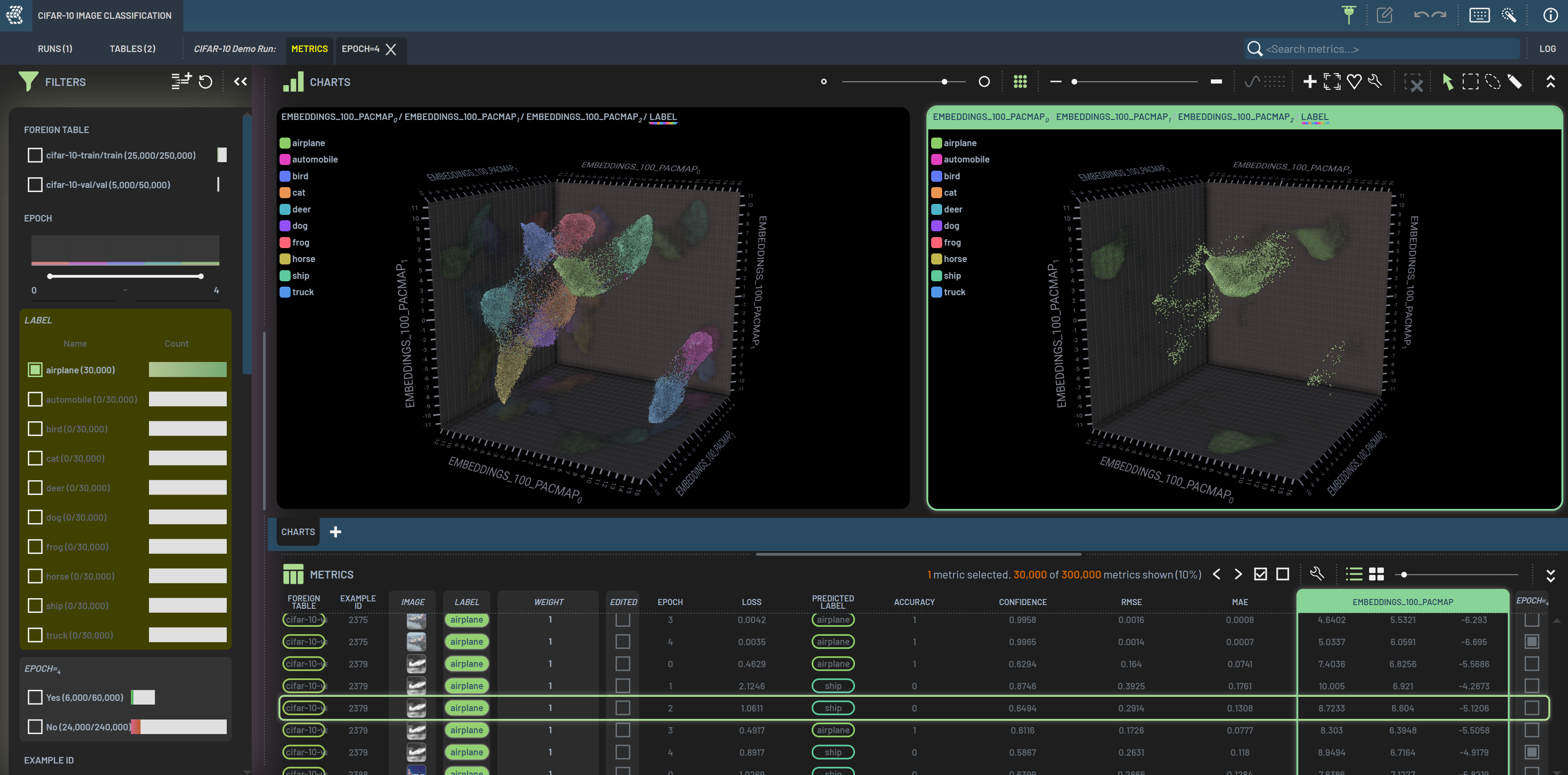
You can export user-defined workflows so that the workflow can be shared with others. To export a user-defined workflow, click the download icon on the workflow card. The workflow will be saved as a JSON file in your Downloads directory. Note that only user-defined workflows are downloadable.
To import a user-defined workflow, you can drag and drop the workflow JSON file into the Dashboard.
A banner will pop up at the lower left corner of the Dashboard, showing that the workflow has been successfully imported.