3LC Single Sign-On with Azure Entra ID
The following instructions require an Azure user with the Application Administrator role. They walk through how to set up Single Sign-On (SSO) to 3LC using your organization’s Azure Entra ID (formerly Active Directory) as the identity provider. This allows your enterprise users to sign up and log into 3LC using the same credentials they already use for other things.
Step 1: Add 3LC SSO as an enterprise application
Log into Azure at https://portal.azure.com/.
Select Enterprise applications.
Click New application.
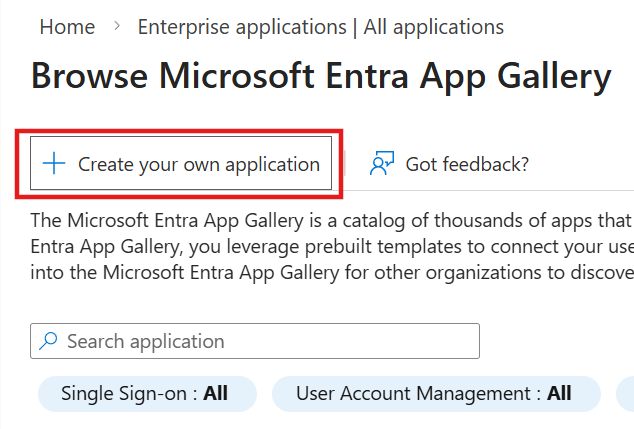
On the next page Browse Microsoft Entra App Gallery, select Create your own application.
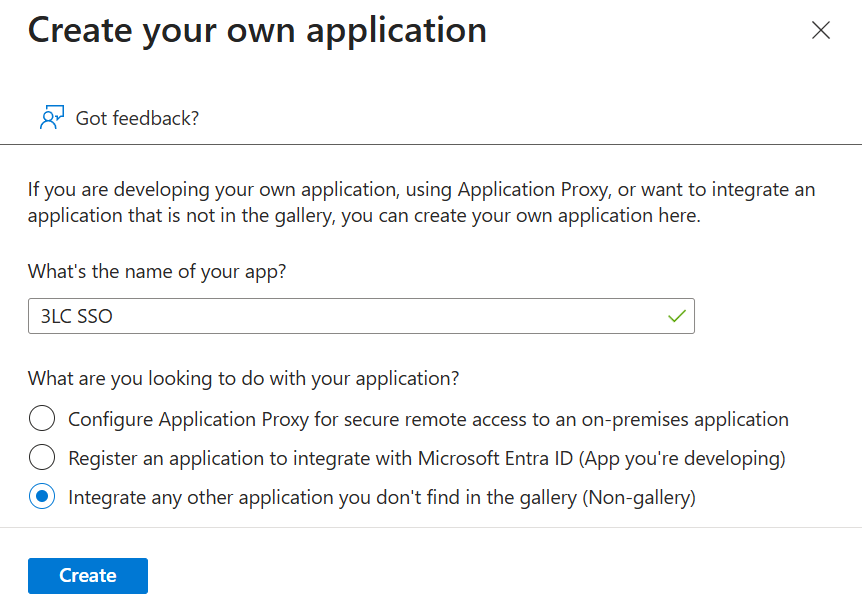
In the dialog, enter a value for What’s the name of your app, for example “3LC SSO” and choose Integrate any other application you don’t find in the gallery (Non-gallery), then click Create.
Step 2: Set up 3LC SSO to use SAML
Log into Azure at https://portal.azure.com/.
Select Enterprise applications, find and select the 3LC SSO enterprise application created above.
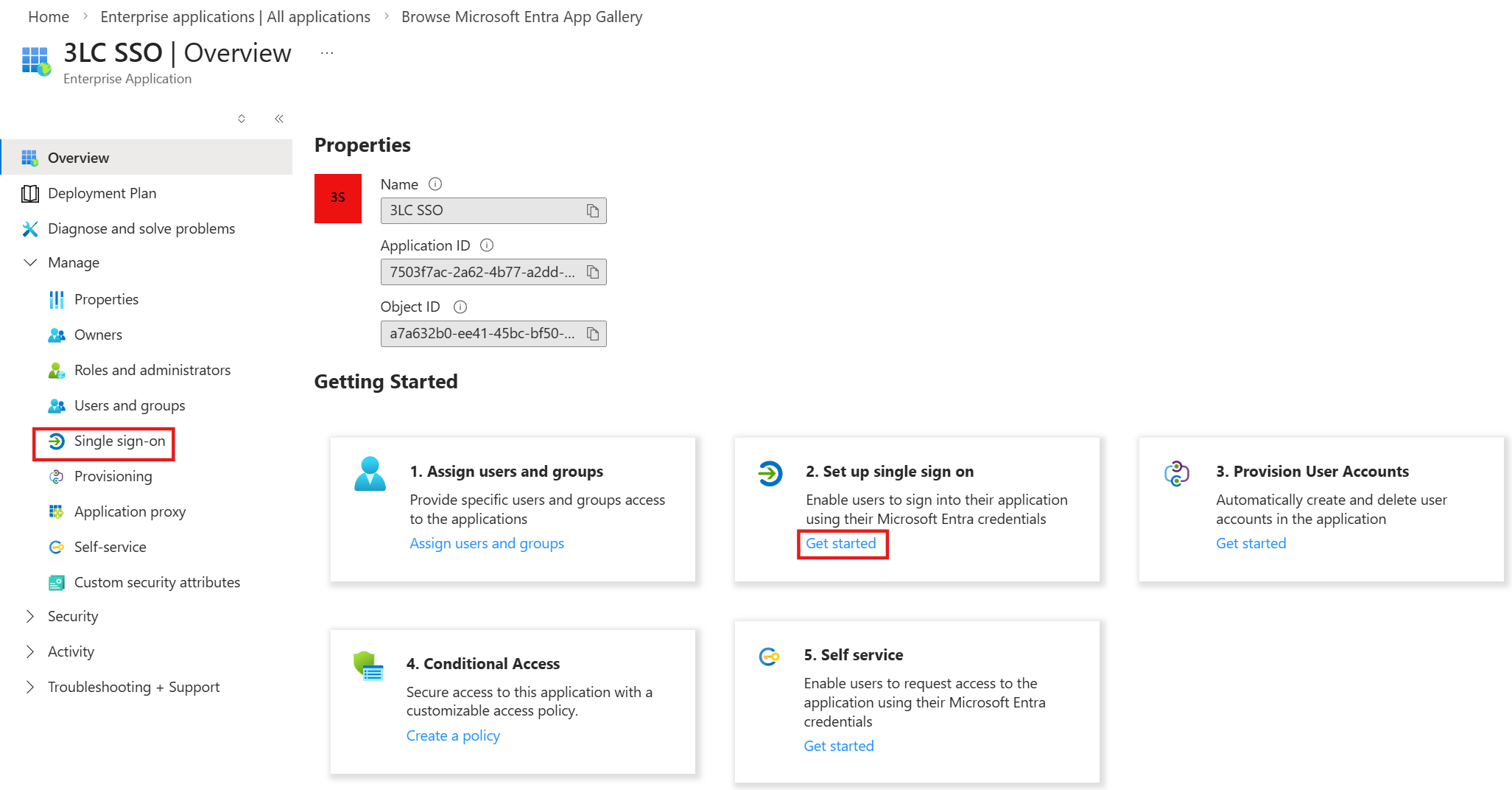
On the Overview page, find Set up single sign on and select Get started, or click Single sign-on from the left sidebar.
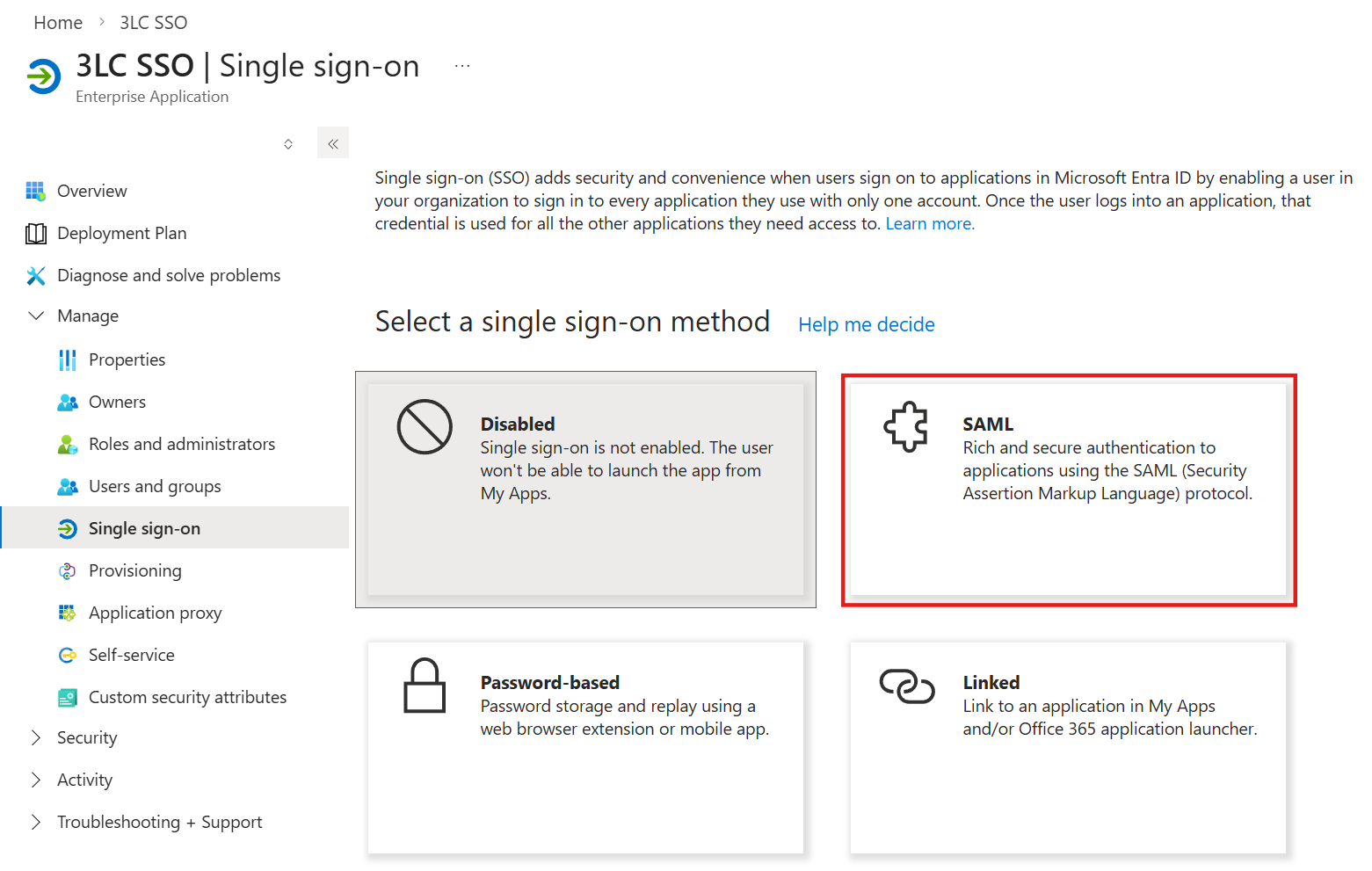
On the Single sign-on page, select SAML.
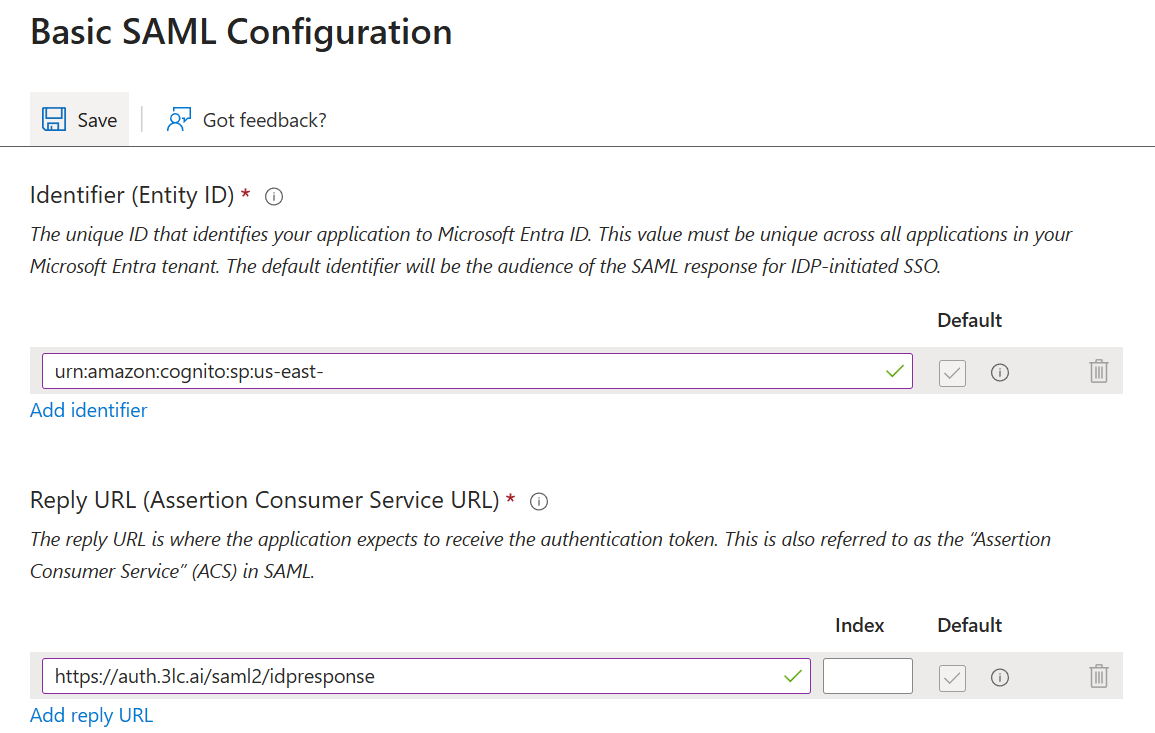
In the Basic SAML Configuration section, click Edit.
Under Identifier (Entity ID), click Add identifier and enter:
urn:amazon:cognito:sp:us-east-1_mSo26SdrWNote
This identifier points to the Amazon Cognito user pool in 3LC’s AWS infrastructure that 3LC uses to broker SSO identities. It is essentially 3LC’s side of the identity handshake with your organization.
Under Reply URL, click Add reply URL and enter:
https://auth.3lc.ai/saml2/idpresponseSelect Save to return to the main SAML configuration page
In the Attributes & Claims section, click Edit.
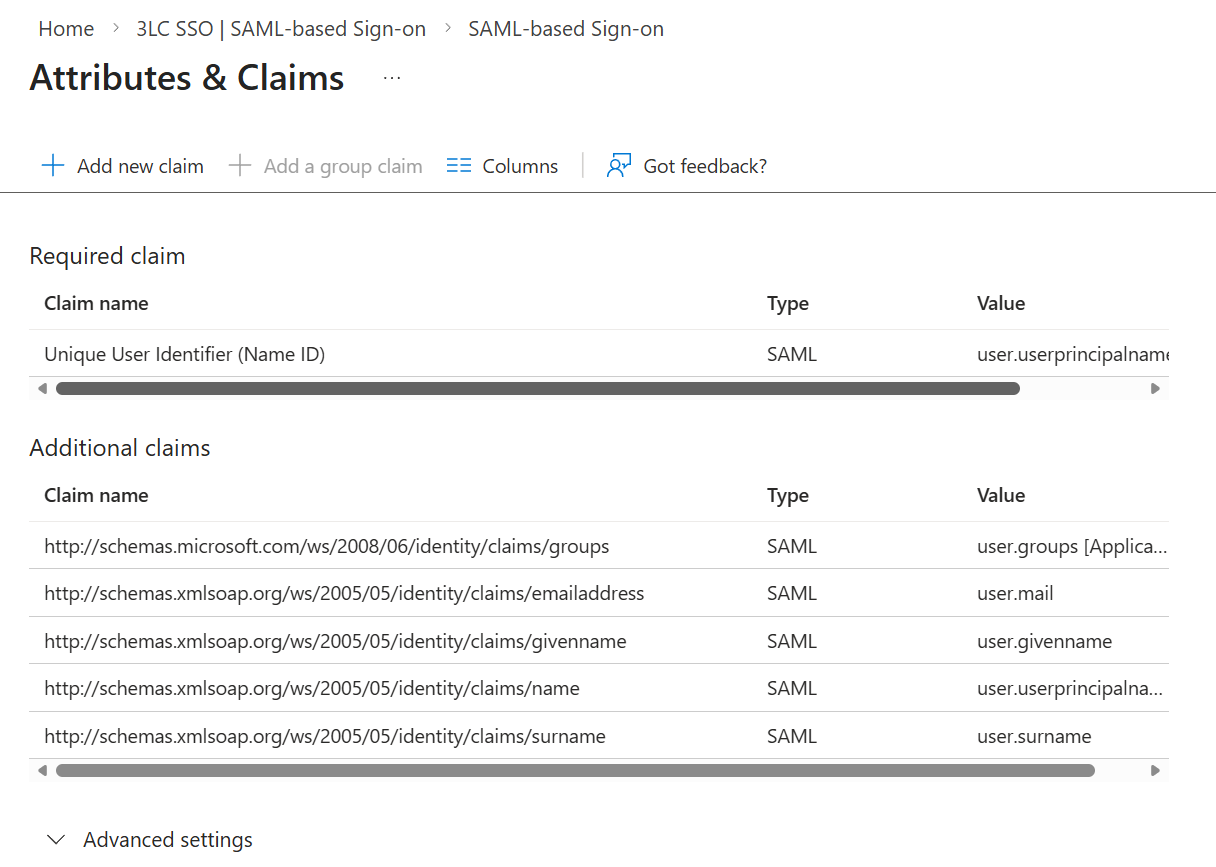
Verify there is a Required claim with Claim name
Unique User Identifier (Name ID)(this is the default).Ensure there are Additional claims for at least the following Claim names, which are required for 3LC.
http://schemas.xmlsoap.org/ws/2005/05/identity/claims/emailaddresshttp://schemas.xmlsoap.org/ws/2005/05/identity/claims/name
The following screenshot shows typical SAML Claims and their mapped Values, including those required for 3LC. Note that the actual mapped values may be different from company to company.
Click the X in the top-right corner to return to the main SAML configuration page.
In the SAML Certificates section, copy the value for the App Federation Metadata Url.
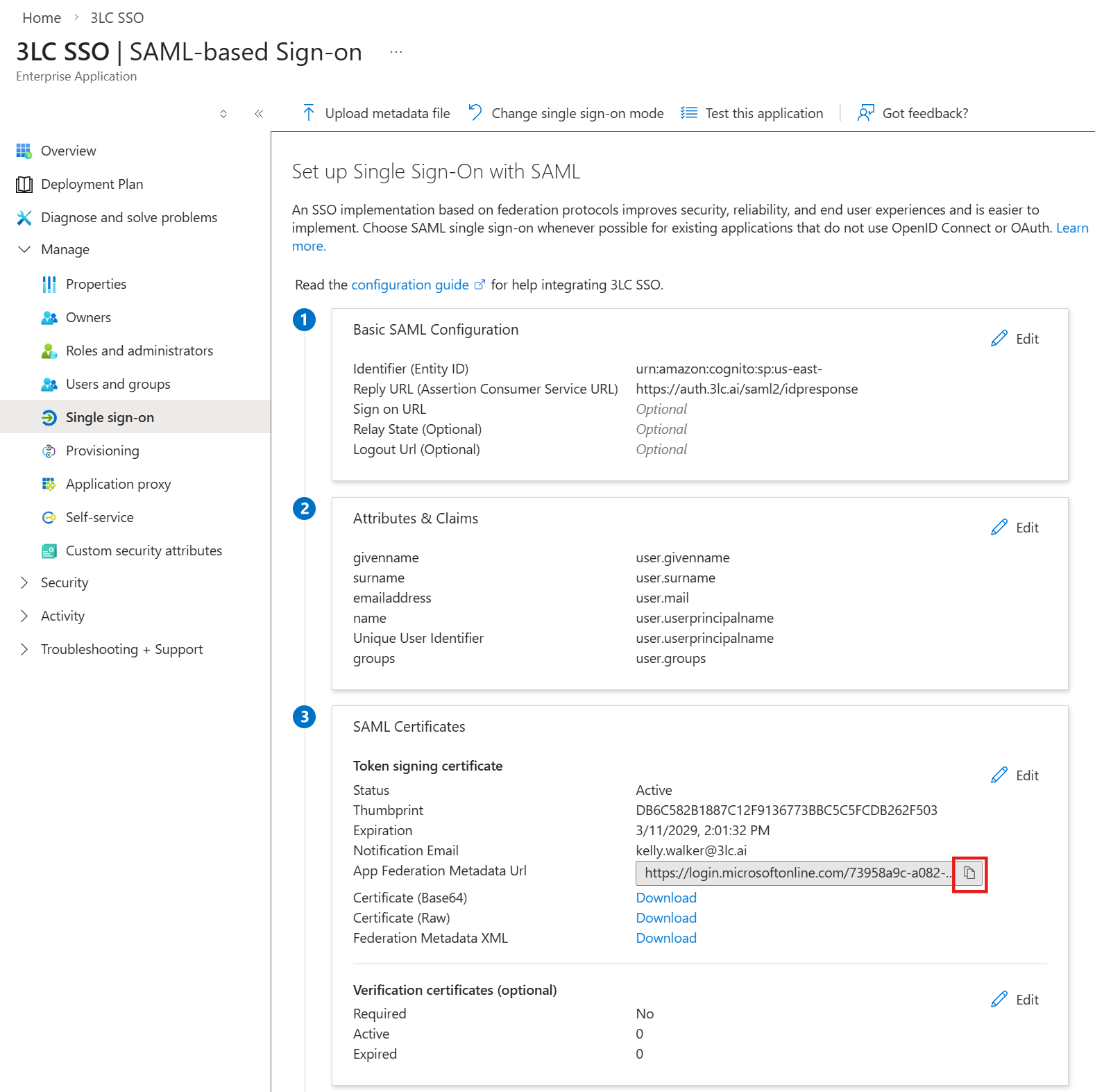
Email the 3LC Account Team the App Federation Metadata Url copied above, along with the email domain(s) you want associated with this SSO configuration (e.g. yourcompany.com).