Oriented Bounding Boxes (OBBs)
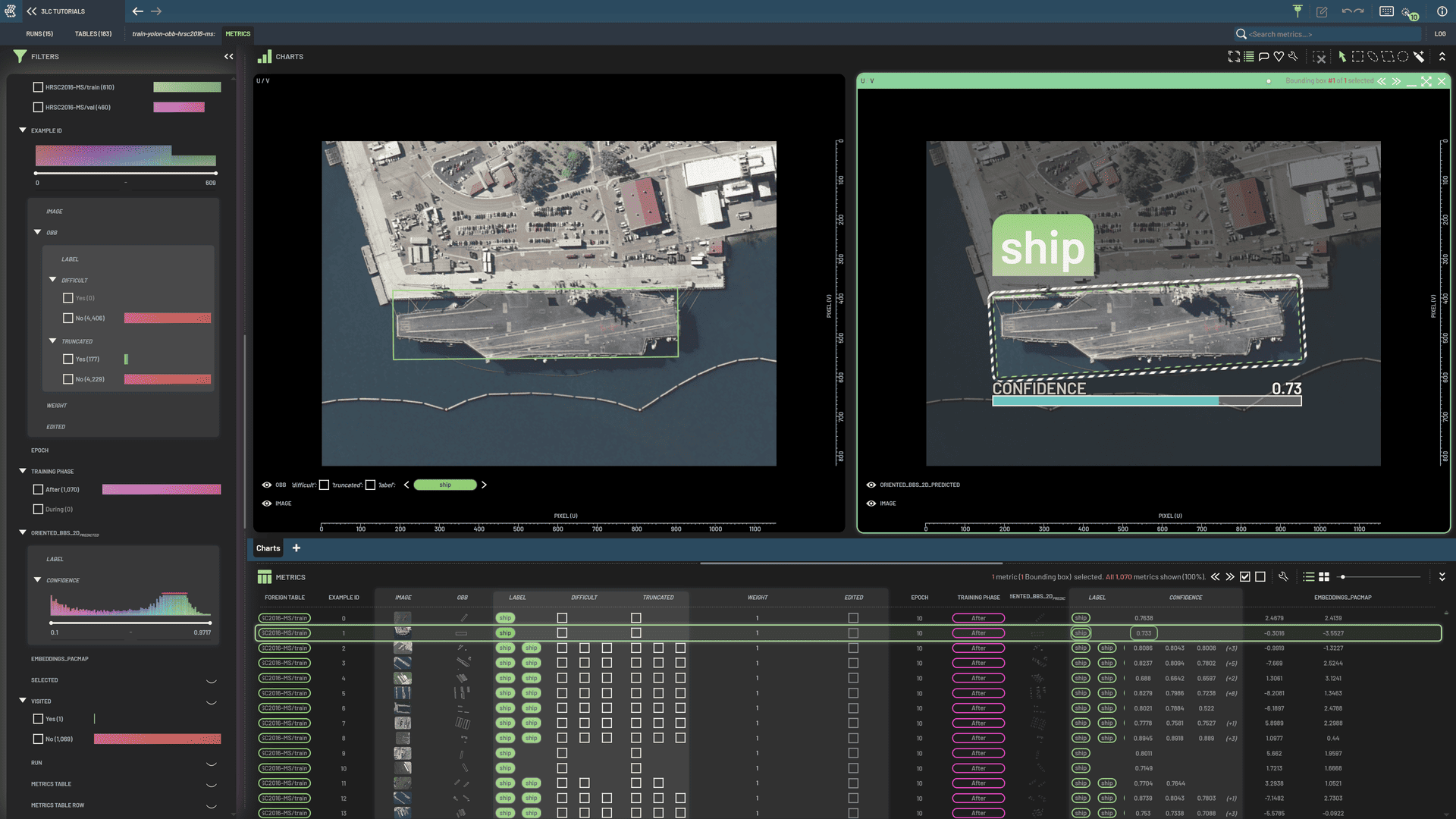
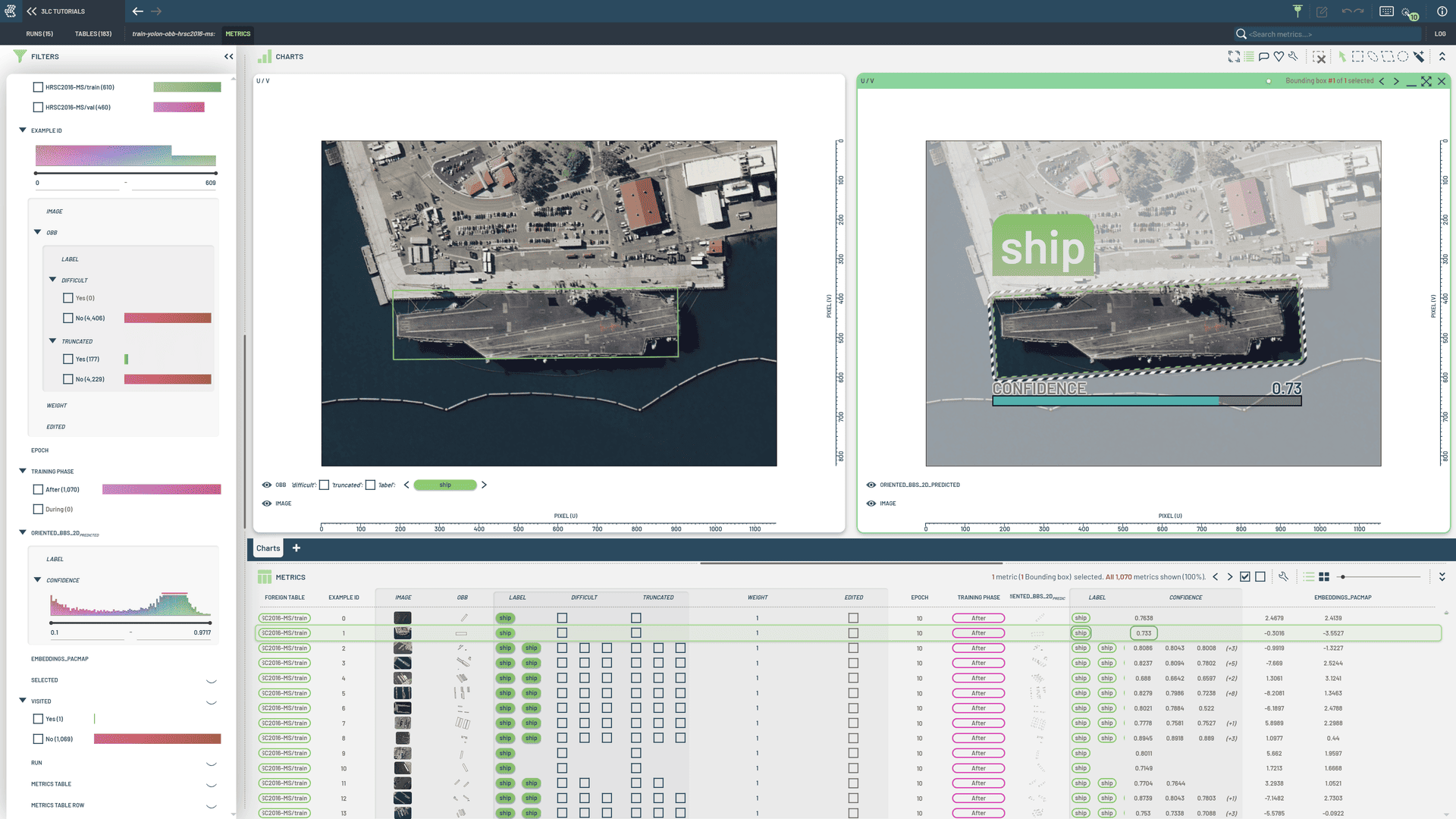
Oriented bounding boxes describe objects with a rectangle that can rotate, allowing a tighter fit than axis-aligned boxes. A 2D OBB is typically represented by its center, size, and rotation.
Creating Tables
The structure of an OBB column is defined by its Schema, returned from
OrientedBoundingBoxes2D.schema(). The
schema-builder lives on the dataclass it serializes, keeping the runtime type and its column
description paired.
Create OBB Tables from YOLO Format: Build Tables from YOLO-OBB datasets (corner vertices format)
Create Custom OBB Tables: Create OBB Tables programmatically
When working directly with OBB data, use the
OrientedBoundingBoxes2D dataclass. It can be constructed
directly with numpy arrays, or built incrementally:
import numpy as np
import tlc

# Direct construction
obbs = tlc.data_types.OrientedBoundingBoxes2D(
    obbs=np.array([[50, 50, 80, 60, 0.5], [100, 100, 40, 30, 1.0]], dtype=np.float32),
    labels=[0, 1],
    x_max=640.0,
    y_max=480.0,
)

# Or build incrementally
obbs = tlc.data_types.OrientedBoundingBoxes2D.create_empty(image_width=640, image_height=480)
obbs.add_instance(
    obb=[320.0, 240.0, 100.0, 50.0, 0.785],  # [cx, cy, w, h, rotation-radians]
    label=0,
    confidence=0.95,
)
Reading OBBs back from a table returns the same dataclass:
sample = table[0]
sample["obbs"].obbs.shape            # (num_instances, 5) with [cx, cy, w, h, rotation]
sample["obbs"].labels.shape  # (num_instances,) if labels are present
Angle and Normalization Conventions
Representation: Each OBB instance is stored as
[center_x, center_y, width, height, rotation].Units:
center_x/center_y/width/heightare in pixels in Table rows;rotationis in radians.YOLO-OBB import: The YOLO-OBB reader expects 8 normalized coordinates (four vertices in
[0, 1]) and converts them to a minimal-area rectangle. Values are denormalized to pixels and the angle is normalized to ([0, \pi/2)).
Framework Integration
The following frameworks are supported for working with OBBs:
Ultralytics YOLO OBB: Full integration for rotated detection via YOLO-OBB datasets
Custom PyTorch Models: Use direct Table access with
OrientedBoundingBoxes2Din your training loops
Examples and Tutorials
Train YOLO OBB Detector: Complete training example with Ultralytics YOLO-OBB
Visualization
Display OBBs on a chart
Like for regular axis-aligned BBs, select the Oriented_BBS_2D and Image columns, press 2 to create an image+OBB chart. Similarly, use the Oriented_BBS_2D_predicted column to create a chart for predicted OBB.
Editing
Create and edit an OBB
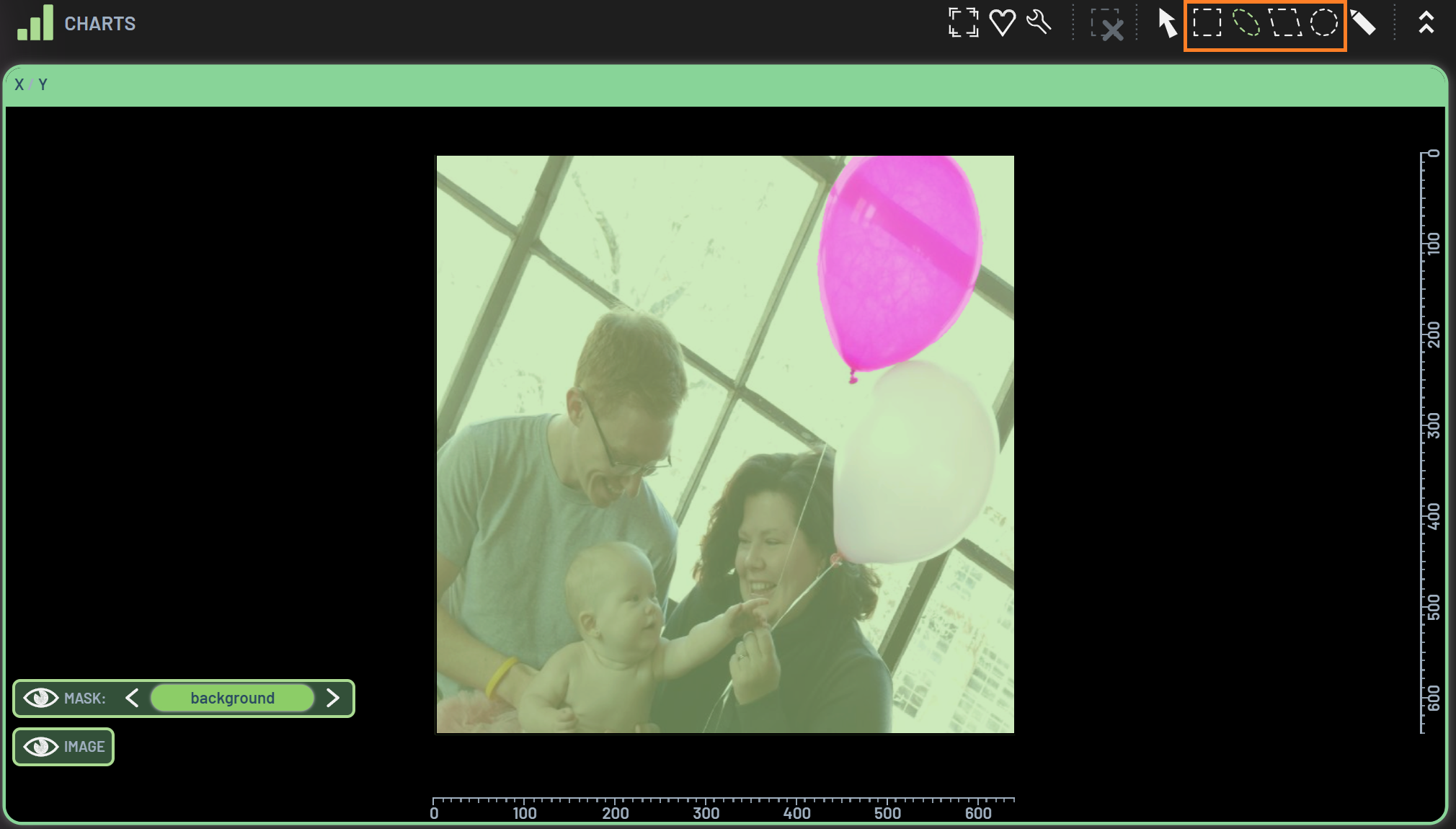
The options for creating an OBB are the same as for creating an axis-aligned BB. Please refer to this page for details.
Editing an OBB is also similar to editing an axis-aligned BB, except that an OBB can be rotated, in addition to being moved and resized. The operations available for editing an OBB are listed below.
Editing an OBB
Dragging an edge of an OBB will allow for resizing and/or rotating the OBB around its center point. A visual indicator of both resizing and rotating will appear when hovering over an edge.
Ctrl + LeftDragging on an edge will only resize the OBB.
Shift + LeftDragging on an edge will only rotate the OBB.
Dragging a corner of an OBB will only resize the OBB.
Dragging inside an OBB will move it.
Derive OBB properties
There are some common properties shared between standard BBs and OBBs, such as area and aspect ratio, etc. You can
also derive some special properties such as angle, center(x), center(y), and distance to origin for OBBs. To
derive a property virtual column, select the Oriented_BBS_2D or Oriented_BBS_2D_predicted
column, RightClick on the column header to bring up the context menu, then you can select the
property you want to create.
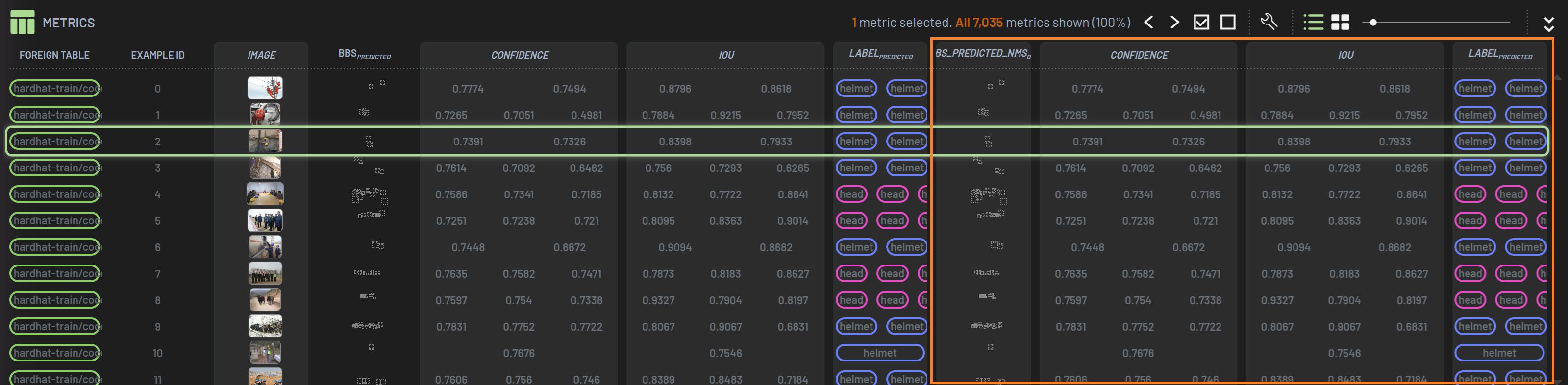
Then, you can plot or filter on those derived properties. For example, the scatter chart below is plotted with the
angle vs. aspect properties after they are derived.