Charts
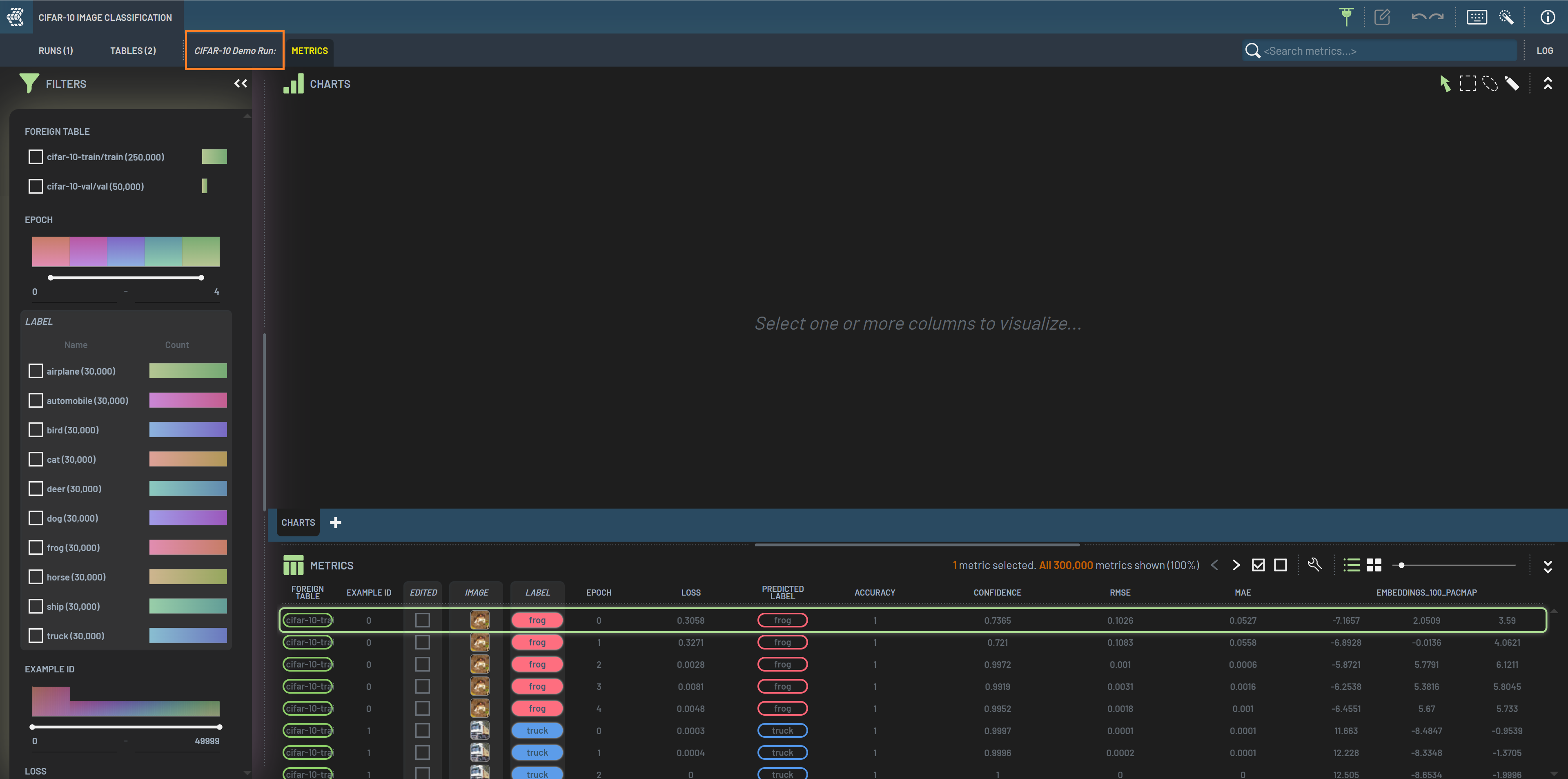
The Charts panel lets you visualize the (possibly filtered) data in the Rows panel. In many contexts, the Charts panel will start with a chart-creation widget, which provides guidance about what chart will be created from selected columns.
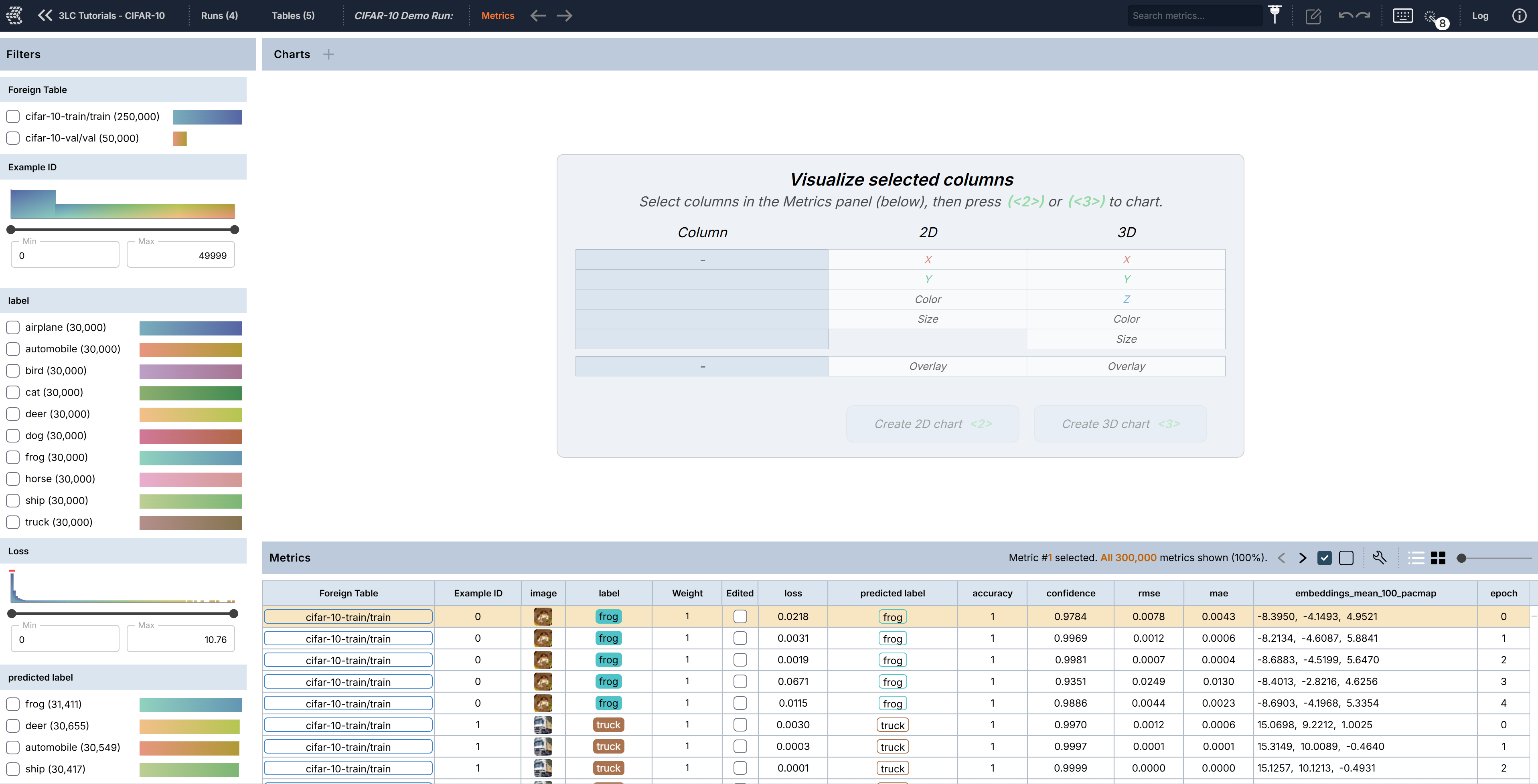
Creating Charts
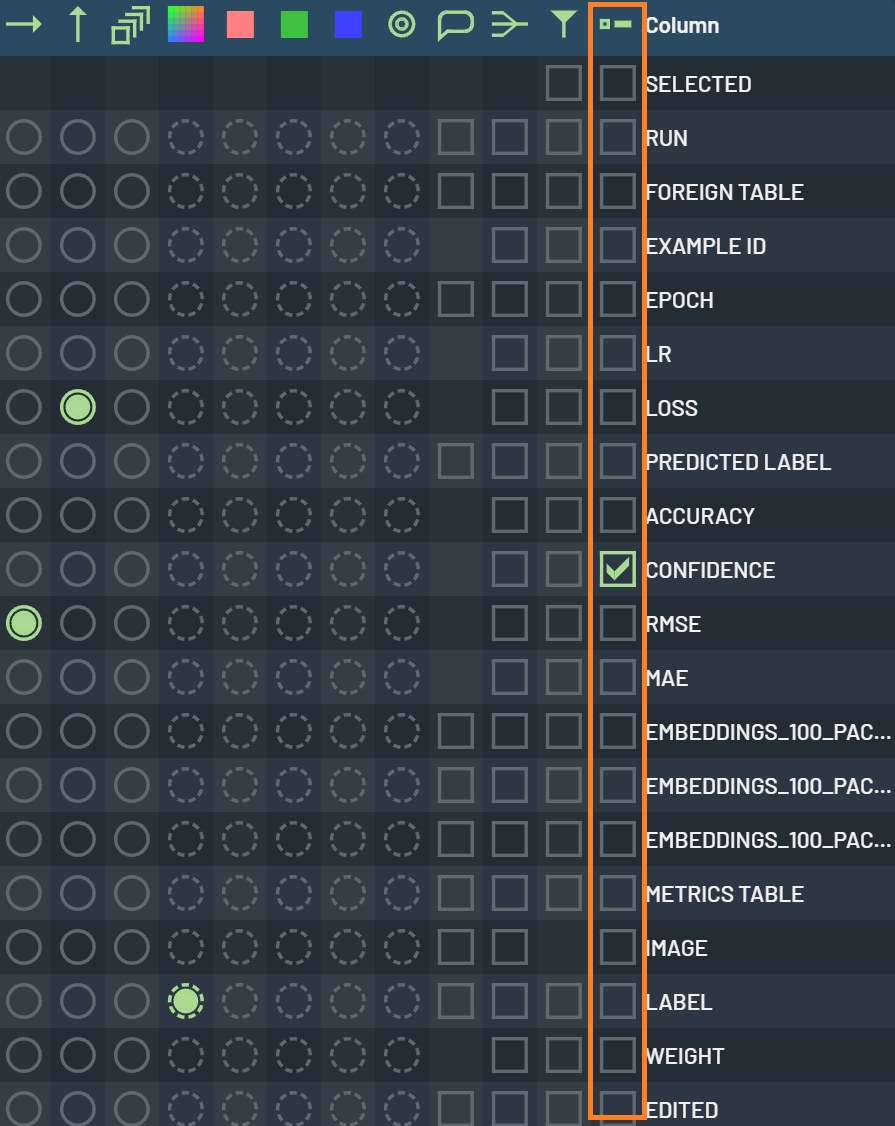
To create a chart, select one or more columns, which will automatically fill in the chart-creation widget in the order
in which they are selected. Note that the image and BBS columns will be filled in the Overlay row in the widget while
other columns will be filled in rows of X, Y, Color, etc. Click Create 2D chart or Create 3D chart in the widget to
create a chart after desired columns are selected.
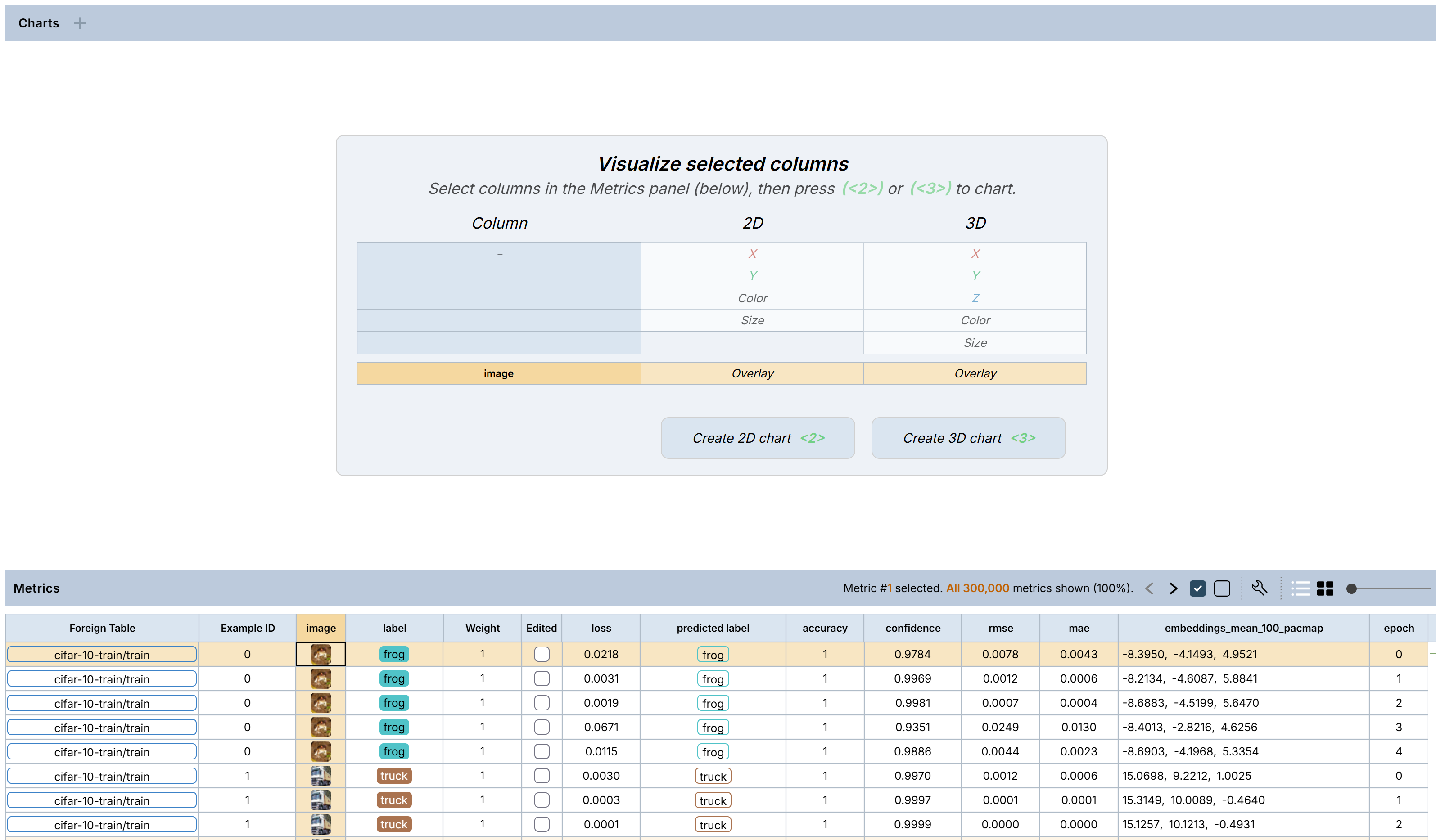
Alternatively, you can select the column(s), RightClick, and select Create 2D chart or Create 3D chart in the context menu. The fastest way to create a chart from a single column is to DoubleClick the column header.
To create an image chart for a Run or a Table, select the IMAGE column (click the column header),
RightClick on the IMAGE column header, and select Create 2D Chart on the popup
menu. Alternatively, you can press 2 after selecting the IMAGE column.
To create a 2D or 3D scatter plot chart, select the columns that you want to plot, RightClick
on the one of the selected columns, and select Create 2D Chart or Create 3D Chart on the popup menu. Alternatively,
after selecting the columns, press 2 to create a 2D chart or 3 to create a 3D
chart. Note that you can select the “colored by” column along with the plot axis columns, that is, the 2D scatter
plot will be colored by the 3rd column you selected. If no 3rd column selected, the plot will be colored by a default
metric, often by label.
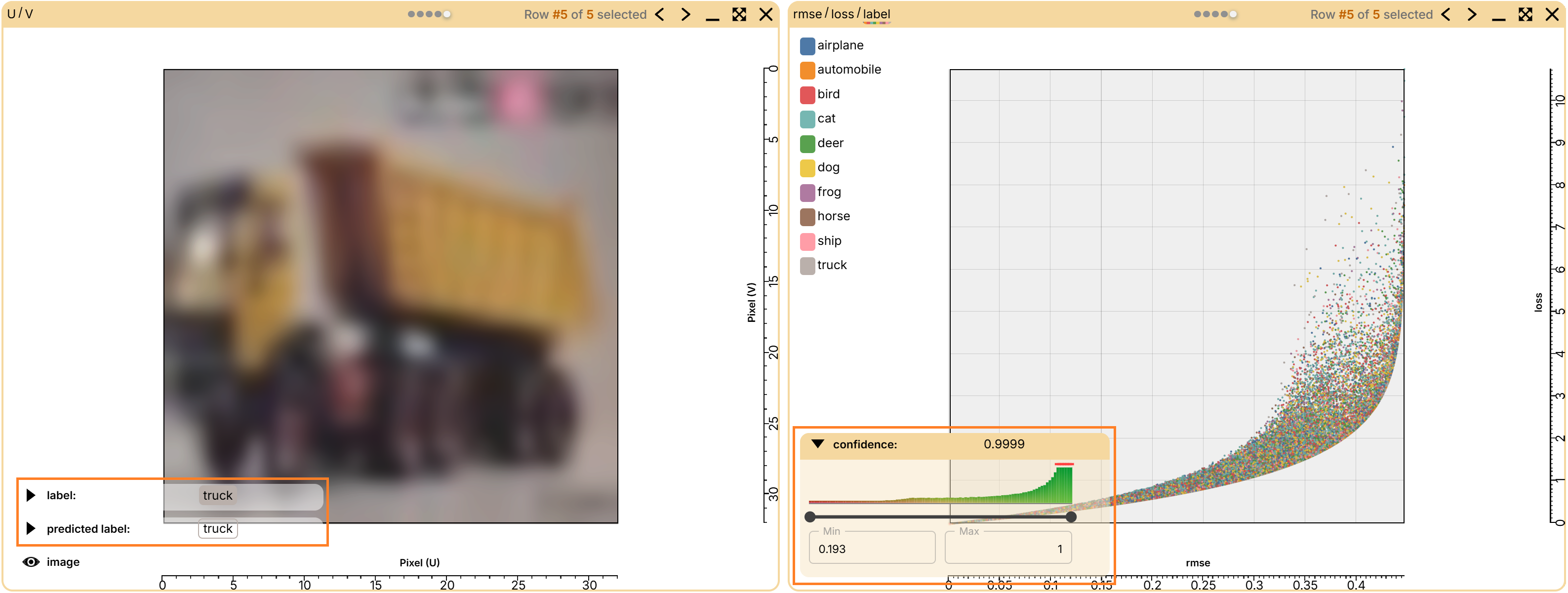
In the example below, an image chart and a 2D scatter plot of RMSE vs LOSS are presented in the Charts panel area. The individual chart title bar shows the column names. For the scatter plot below, RMSE/LOSS/LABEL correspond to X-axis, Y-axis, and Color, respectively. The selected chart, highlighted by the green outline, can be tweaked with the settings in the Charts toolbar, such as the point size slider. See How to tweak a chart for details.
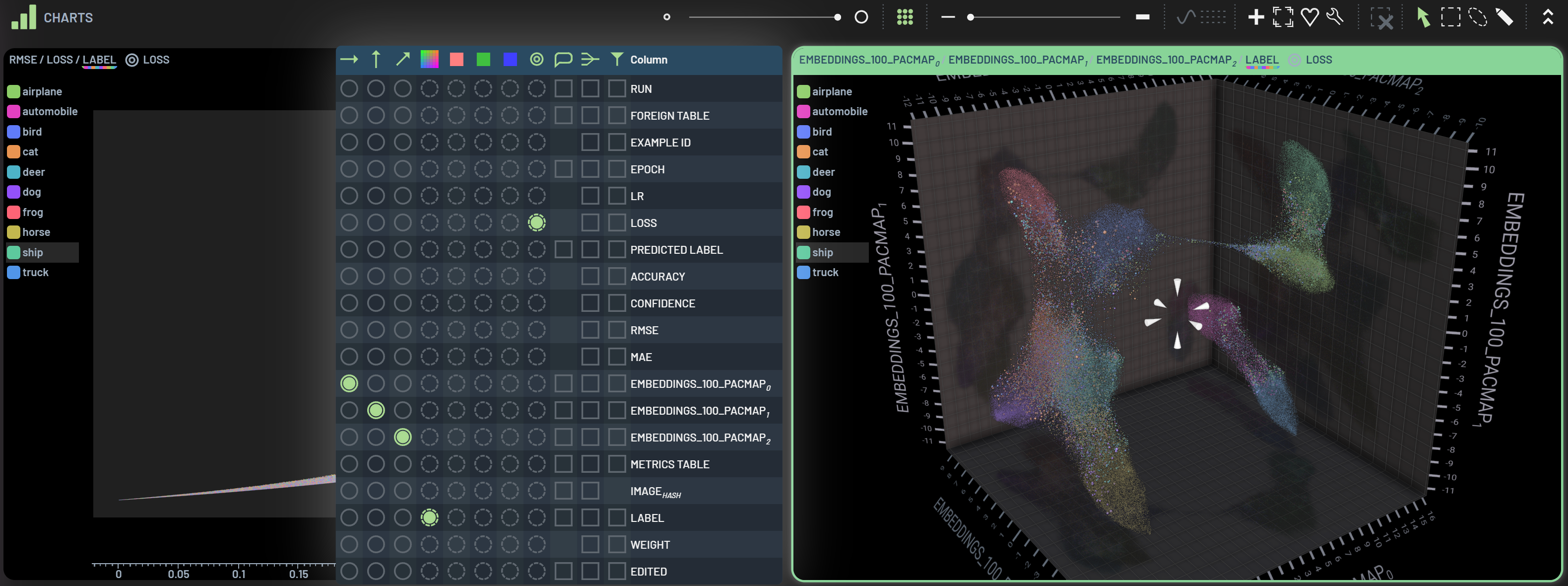
Image chart
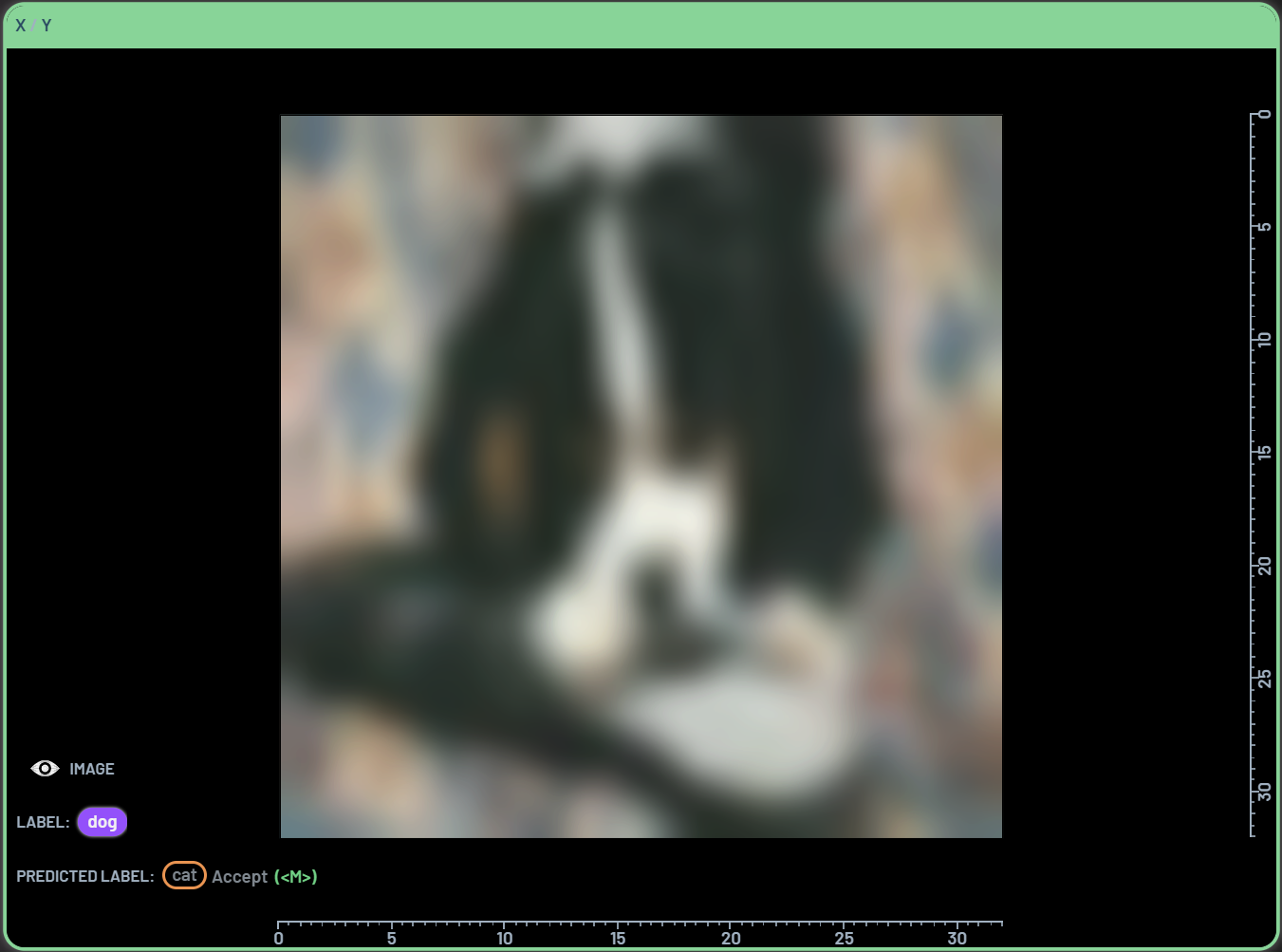
An image chart can be overlaid by Label and Predicted_Label. Select Image, Label and Predicted_Label, and then create a 2D chart. The label and predicted label information will be displayed on the lower left corner of the image chart. Alternatively, the Label and Predicted Label properties can be added to an image chart by overlaying properties on a chart.
Shortcuts 2 & 3
These two keyboard shortcuts are convenient ways to create 2D or 3D charts.
Press 2 to create a 2D chart when one or more columns are selected.
Press 3 to create a 3D chart when three or more columns are selected.
2D chart
The column types (e.g., image, numeric) and the order of column selection determine how the 2D chart is constructed.
One image (or BBs) column selected -> image (or BBs) chart
image + BBs + BBspredicted selected -> BBs overlaid image chart
One single-numeric column selected -> Example ID / column_name scatter plot colored by a default metric (e.g., label)
Two single-numeric columns selected -> column1_name / column2_name scatter plot colored by a default metric (e.g., label)
Three or more single-numeric columns selected -> column1_name / column2_name scatter plot colored by column3_name
One 2-numeric column (e.g., a 2D-embeddings column) selected -> column_name0 / column_name1 scatter plot colored by a default metric (e.g., label)
3D chart
The column types (e.g., image, numeric) and the order of column selection determine how the 3D chart is constructed.
Three single-numeric columns selected -> column1_name / column2_name / column3_name scatter plot colored by a default metric (e.g., label)
Four or more single-numeric columns selected -> column1_name / column2_name / column3_name scatter plot colored by column4_name
One 3-numeric column (e.g., a 3D-embeddings column) selected -> column_name0 / column_name1 / column_name2 scatter plot colored by a default metric (e.g., label)
Axis scaling for 2D charts
Mouse wheel over a ruler zooms that axis only.
Dragging along a ruler pans that axis only.
Double-clicking a ruler fits that axis to its contents, like double-clicking the chart background but for that axis only.
Multi-chart tiling
Charts keep their natural height and the panel scrolls vertically instead of squashing them to fit. Use the
Max charts side by side setting to choose how many charts go in each row (default 8).
Tweak Charts
There are many handy tools associated with charts. You can utilize these tools to adjust your chart’s appearance.
Charts Toolbar
The Charts Toolbar is located on the top of the Charts panel. The available tools may vary when different charts are selected.
The tools in the Toolbar above from left to right are (hover over the icons in Dashboard to see the tooltips):
Point size slider: Adjust scatter point sizes
Show/hide filtered-out points: Show or hide filtered-out points in grey
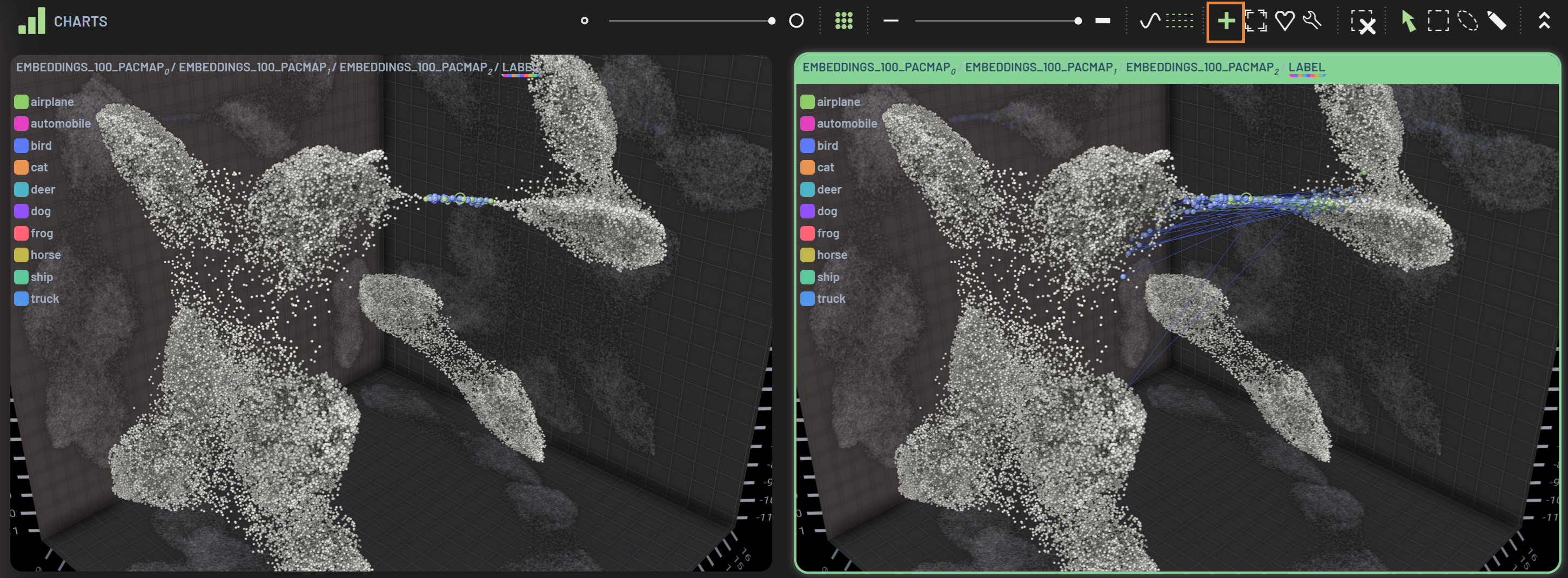
Line opacity slider: Adjust the opacity of the connecting lines of same sample across epochs; default 0
Show/hide filtered-out lines: Show or hide filtered-out lines in grey; grey out when line opacity=0
Smooth lines: Smooth the connecting lines to non-straight lines connecting two points; grey out when line opacity=0
Show partially filtered-in samples across epochs: when only partial data points of a sample are filtered in, click this icon to show the rest of the data points of this sample across all epochs. E.g., of 5 epochs, only Epochs 1 & 2 of a sample are originally filtered in by applying some filters and, after clicking this icon, all 5 epochs of this sample will show up.
Points: Plot as points (default for all scatter plots)
Boxes: Plot as boxes (used for confusion matrix plots)
Interpolate: Apply interpolation algorithms to the plot
Snap all to contents: Snap the chart to fit the chart window; Shortcut Y
Show legend: Display the legend on chart for the metric in the color dimension
Show custom chart annotation: Display a banner on top of the chart to show custom annotation
Favorite chart: Mark a chart as favorite chart, so that it will be automatically created next time
Tweak chart (wrench): Open a dialog with a full spectrum of chart tweaking functionalities
Lock chart contents: Freeze the content (e.g., data points) in the chart, so that other activities such as filtering will not affect this chart. When a chart is locked, a red lock icon will appear on the right of the chart’s title bar. Click it to unlock.
Clear all polygon selections: Clear all polygon (e.g., lasso) selections; grey out when no polygon selection applied; shortcut CTRL+G
Pan/rotate viewport: Pan 2D chart or rotate 3D chart; Shortcut Space or Q
Rectangle selection: Draw a rectangle on a chart to filter data points; shortcut W
Lasso selection:Draw a lasso on a chart to filter data points; shortcut E
Polygon selection:Draw a polygon on a chart to filter data points; shortcut R
Brush selection:Brush on a chart to filter data points; shortcut T
Paint bounding box: Draw new bounding box on ground truth BBs chart; shortcut U; only available for object detection datasets
Most of the tools are intuitive and easy to use, while others require a bit more explanation and will be detailed in subsequent tutorials. Below is an example of 3D embeddings charts with connecting lines and without connecting lines.
Tweak Chart dialog
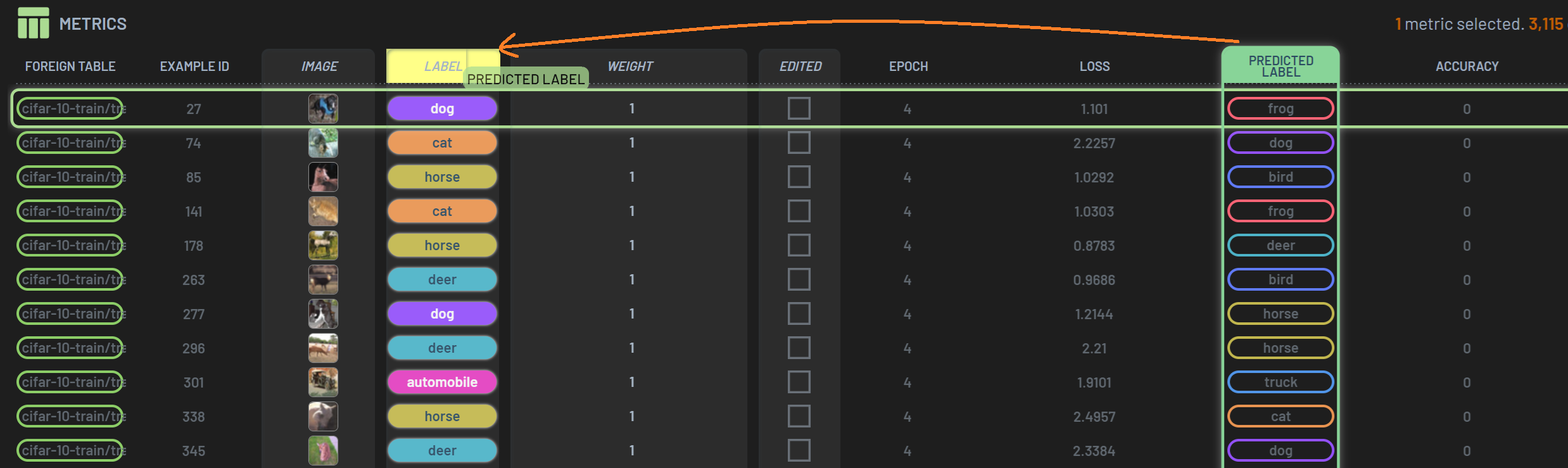
After clicking the Tweak Chart wrench icon, a dialog shows up next to the selected chart. You can tweak many things in
this dialog. For example, a column selected in the radius column will be used to scale the radius of the data points
based on the column’s values. The example below shows larger data points with bigger losses in the 3D embeddings chart.
This additional column applied is reflected on the chart’s title bar.
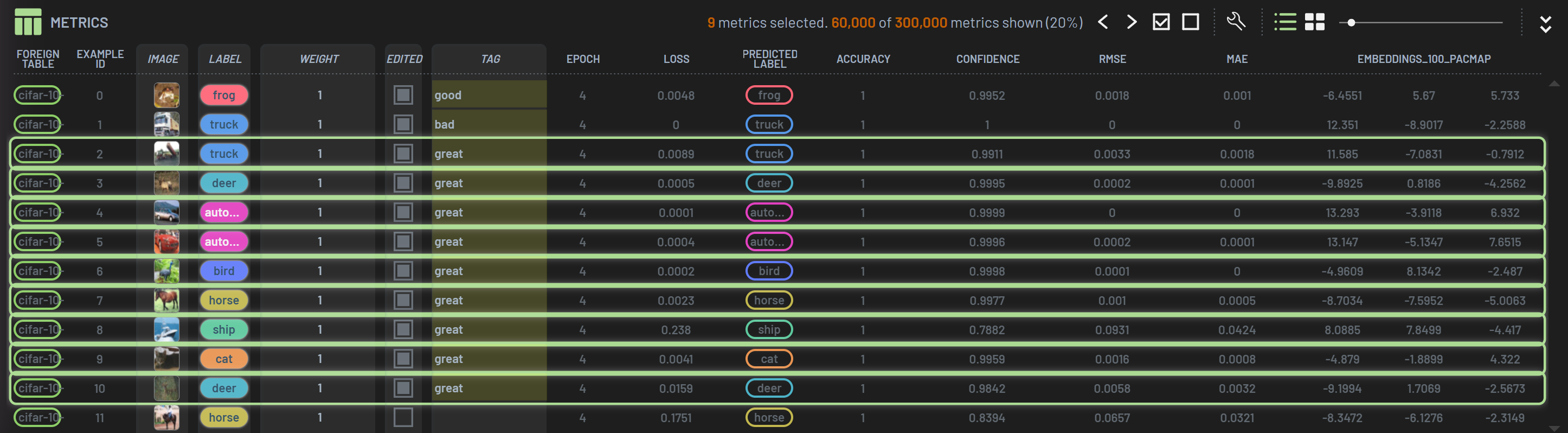
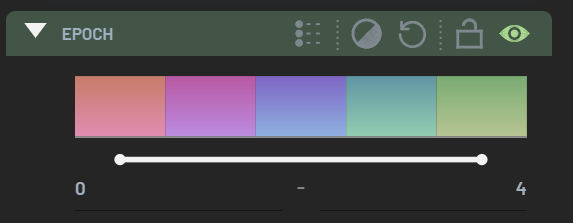
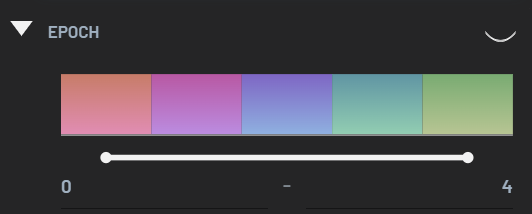
In the Epoch vs Loss chart below, the reducing operation is applied on the Epoch and Label columns. Each point on the chart represents an average loss of a given label on a given epoch across the entire dataset.
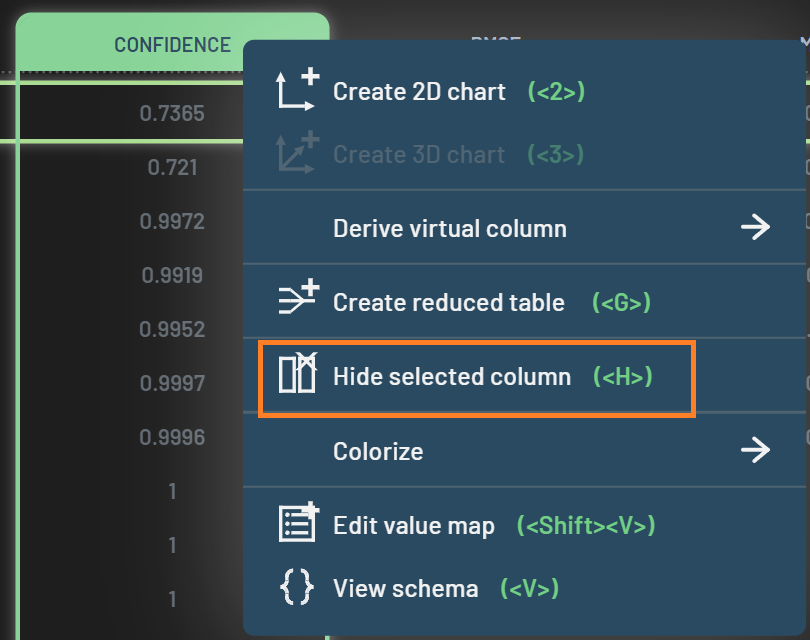
Reduced charts are not limited to averaging. Each axis can use its own reduce operation, such as Count, Sum,
Median, or Standard deviation. Pick it from Reduce using in the axis menu, or use the reduce button in the Charts
toolbar to switch every reduced axis at once. The default reduce operation is averaging. Box and Voronoi chart
types are no longer limited to explicitly reduced charts: they draw one box or cell per position on the chart floor, so
when several data points land on the same position (the same x — and y in 3D — values), they are automatically reduced
into one using the chart’s reduce operations. When this implicit reduction happens, the Tweak Chart dialog shows the
affected reduce columns as checked and disabled. If no data points share a position, the chart simply draws one cell
per data point and no reduction takes place. Note that Box additionally requires the positions to form a small enough
grid, and is disabled in the toolbar otherwise.
You can also change an existing column (e.g., color column) in a chart to another column in the Tweak Chart dialog.
Overlay Properties
Charts can be overlaid by properties (i.e., columns). The overlay properties are displayed on the lower left corner of the chart. With the overlay properties, you can easily peek at what the currently selected sample is all about, e.g., the label and predicted label, etc.
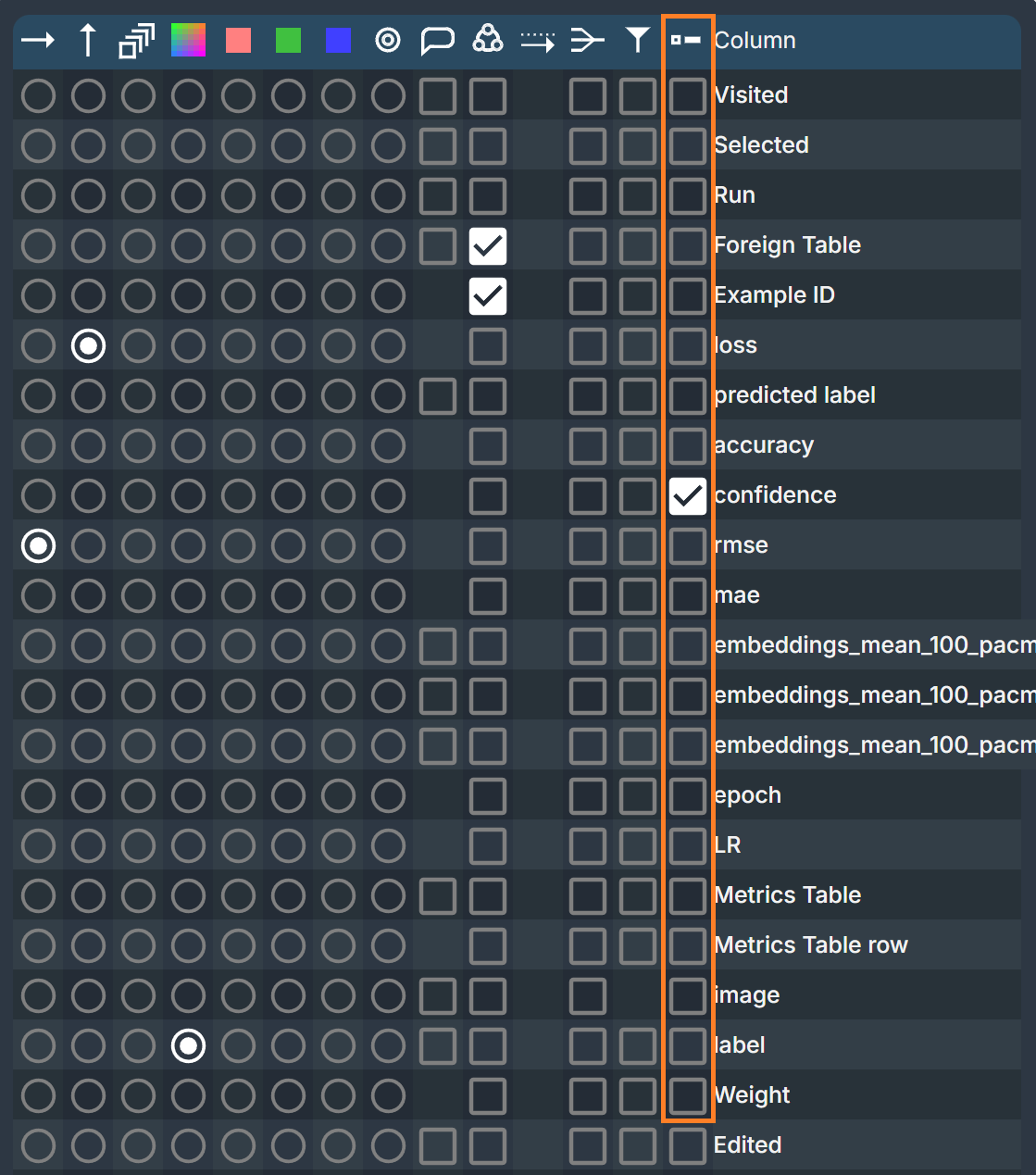
To overlay properties, open the Tweak Chart dialog by clicking the wrench icon in the
Charts’ toolbar. The far right column is Show tweak overlay, where you can select the properties (columns) you want to
overlay on the chart.
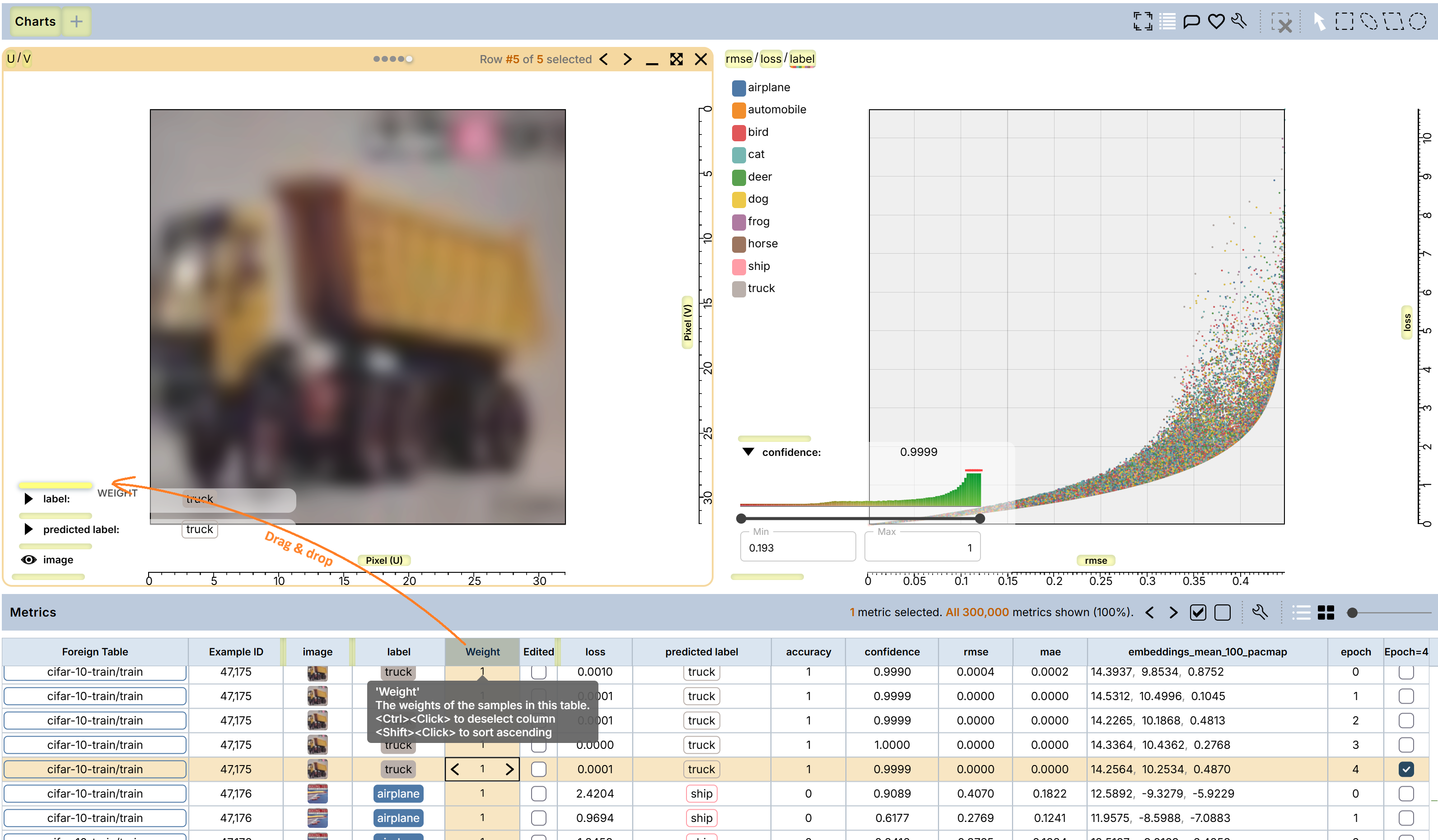
An alternative way to overlay properties on an existing chart is to drag and drop the column into the chart as shown in the screenshot below. You can also reorder the existing overlay properties by dragging and dropping.
There is a simpler way to overlay properties on an image chart. You can simply select the image column and the columns you want to overlay on the chart before creating the chart.
The overlay properties can be edited in place, which is equivalent to editing them in the Rows panel.
Tooltips
Hovering over a chart point can show the same tooltip that the Rows panel shows for the
corresponding row. For a point that stands for a single array element (e.g., one bounding box), the tooltip shows that
element alone, zoomed to its box, like a cell of an unrolled by grid view. The same element tooltip also appears on
array-element chips in table cells, on instance-list rows, and on partial-selection dots.
Each of these tooltip surfaces can be set to Off, Small, or Large in the Tooltips section of the
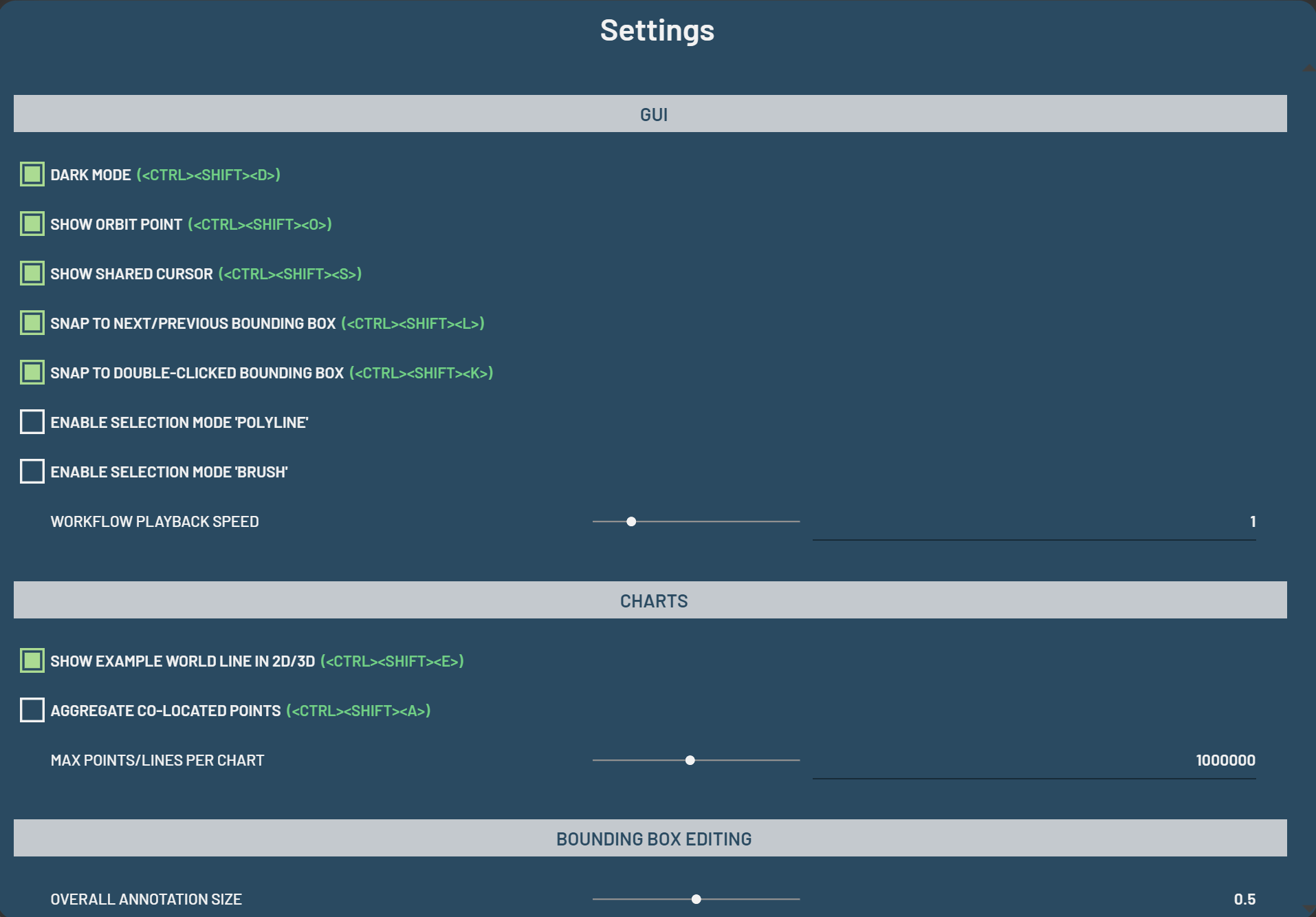
global settings. Note that chart tooltips default to Off, so hovering over a chart point shows
no tooltip until you switch them on.
Pixel readout
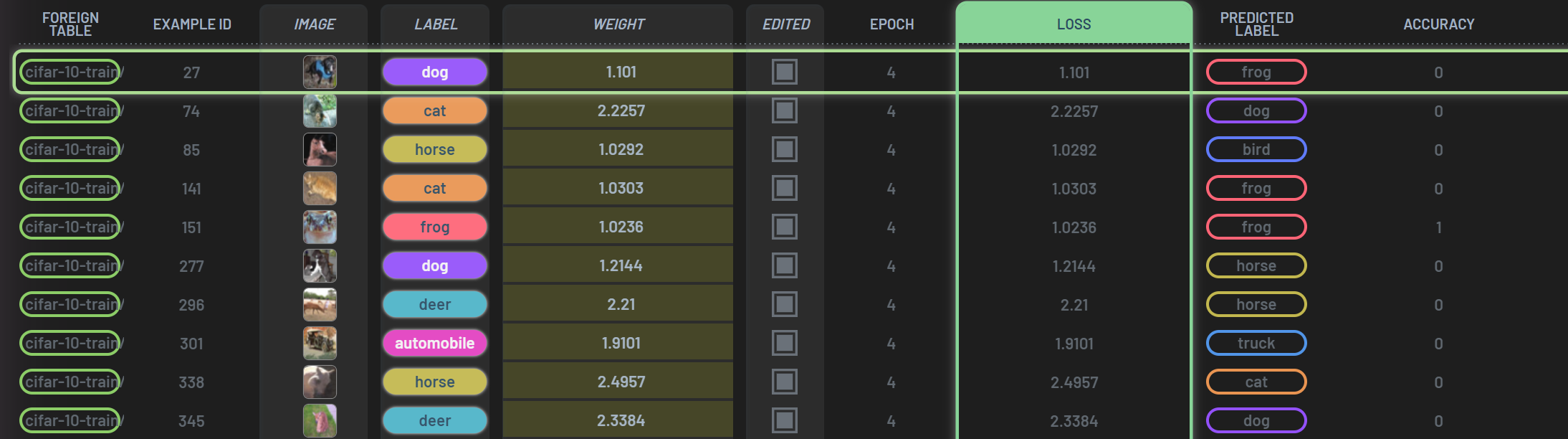
When hovering over pictures in a 2D chart (image, expression image, or
chart image columns), the tooltip also reads out the pixel under the pointer: one line per
picture, first among the tooltip’s detail lines, each with a small color swatch before its numbers. A color pixel reads
as Color: (0.3, 0.5, 0.2), with alpha added as a fourth value only when it is not 1. A greyscale picture reads as a
single Intensity value, or Intensity/alpha when the pixel has an alpha. When several pictures are under the
pointer, all of them are read, ordered by visual stacking (topmost first) and named after their pictures.
The values are the picture’s data — before Levels and opacity are applied, and at 16 bits when the picture has them.
A segmentation mask gives no readout line of its own (its colors are class colors, and the tooltip already lists its
classes), but a picture underneath it is still read.
The readout format is set in Settings > Tooltips > Pixel readout: Off, Fraction (the default — each channel 0 to
1, with at most 4 decimals), or Integer (each channel as the picture stores it: 0..255 for an 8-bit picture, 0..65535
for a 16-bit one).
Chart image columns
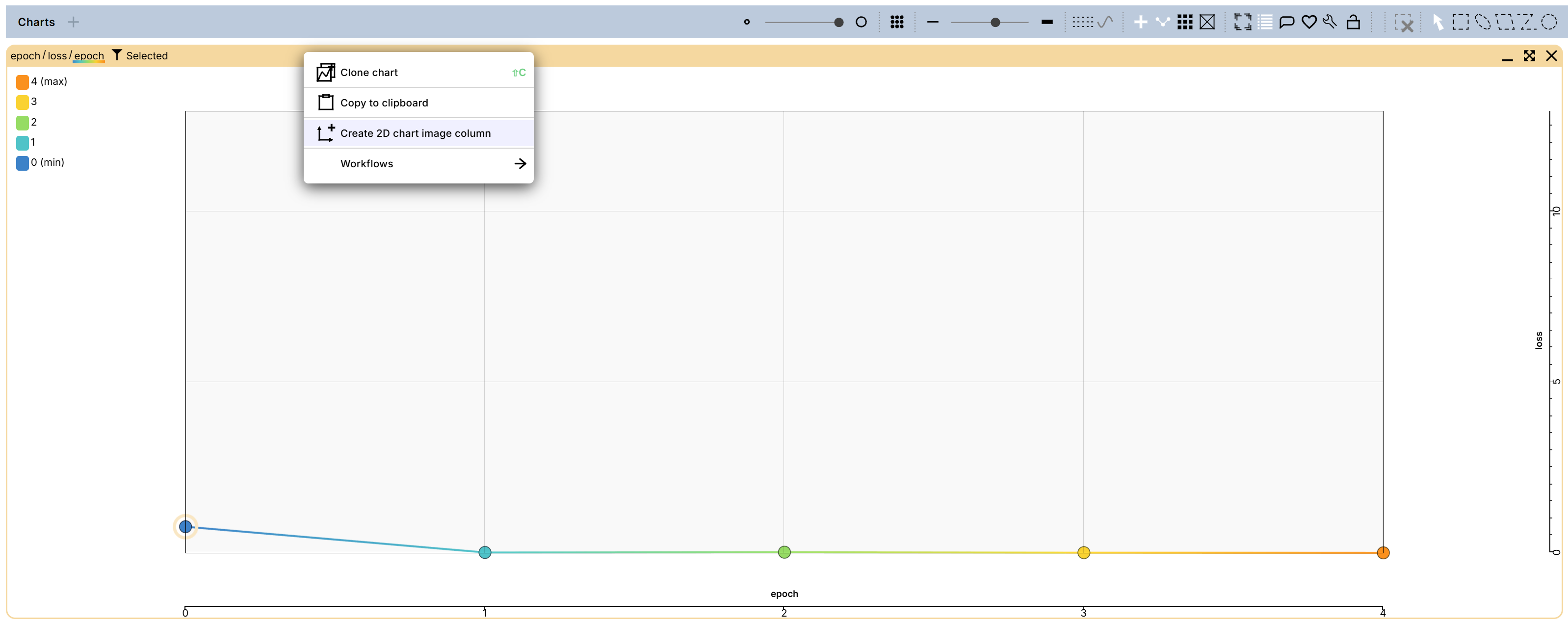
A chart image column is a virtual column that shows, for each row, a thumbnail of a chart drawn as if only that row
were selected. To create one, RightClick on a chart’s title and select
Create 2D chart image column or Create 3D chart image column.
These menu entries only appear for charts filtered by Selected. A chart that does not depend on the selection would
render the same thumbnail for every row.
This lets you compare the per-row view of a chart across the whole table without clicking through the rows. For example, you can sort or filter on another column and scan how the chart changes from row to row, or switch the Rows panel to grid view to lay the thumbnails out side by side.
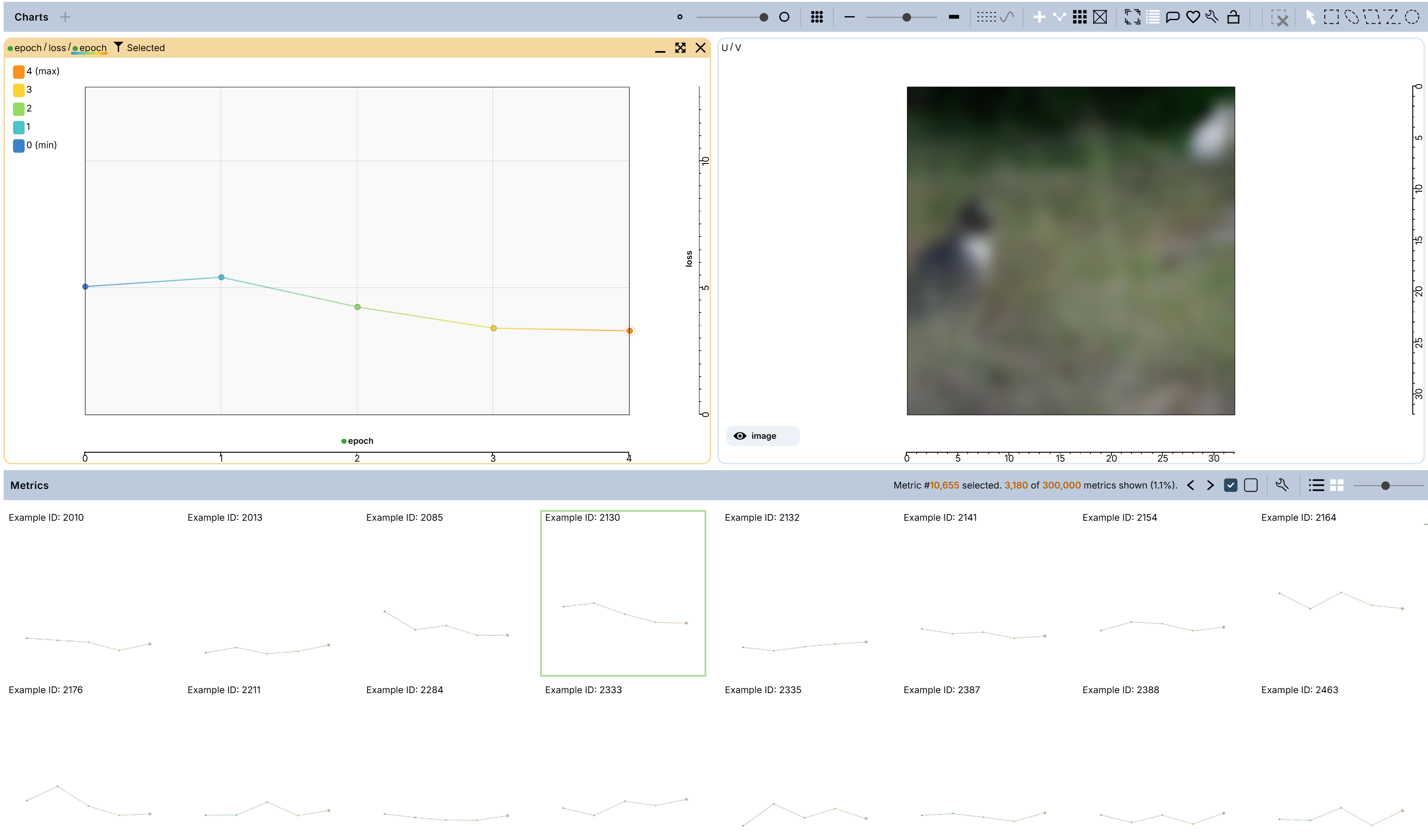
Image levels
The brightness and contrast of a chart image are adjusted with Levels: a window of pixel values that is stretched
onto the full display range. A greyscale inspection image whose values sit in a narrow band, for example, can be spread
across the whole range. The Levels row shows the image’s R, G and B histograms behind a wide slider, with the
full-height view shown on hover.
Auto levels picks the window per image from its histogram. A drag or a typed value takes over from the auto values,
and unchecking Auto levels returns to the levels you had. Double-clicking between the handles of any range
slider — filters included — resets it to the full range. Videos offer Levels and Reset levels, without Auto levels.
A picture whose file has 16 bits per sample keeps its 16 bits in the image chart: a narrow Levels window shows smooth
gradients and fine detail instead of 8-bit bands, Auto levels fits the 16-bit values, and the row says
Levels (16-bit) — or (16-bit greyscale) for a greyscale file. 8-bit pictures, masks, thumbnails and table cells are
unaffected. Expression images read such pictures at 16 bits and are then 16-bit themselves. The
Show 16-bit images setting in the Chart section of the global settings can limit charts to
16-bit textures or force 8 bits.
Camera behavior when stepping through rows
When stepping through rows in an image chart, the zoom and pan are kept as long as the next image has the same aspect ratio, so one detail can be compared across many images; the rulers stay in place while the next image loads. Bounding-box and pose charts behave the same way, and double-clicking a box in another row still zooms to that box.
Two settings in the GUI section of the global settings control this behavior:
Snap to contents when image changes:Always,When size changes, orWhen aspect changes(the default, which gives the camera stability described above).Snap when changing table row:SmoothorImmediate.
Selection Tools
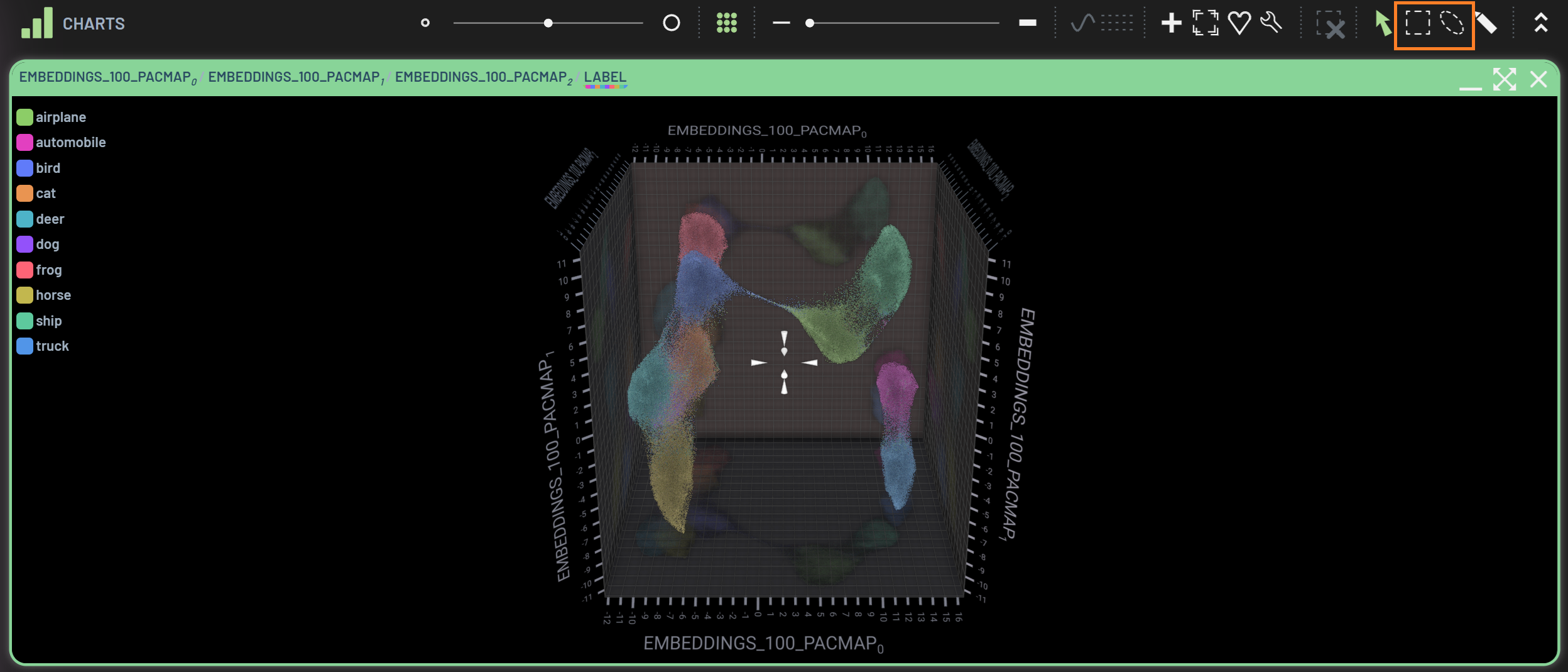
The polygon selection tools may be used to select and filter data points by drawing polygons on charts. They are located on the far right of the Charts toolbar and include rectangle selection and lasso selection.
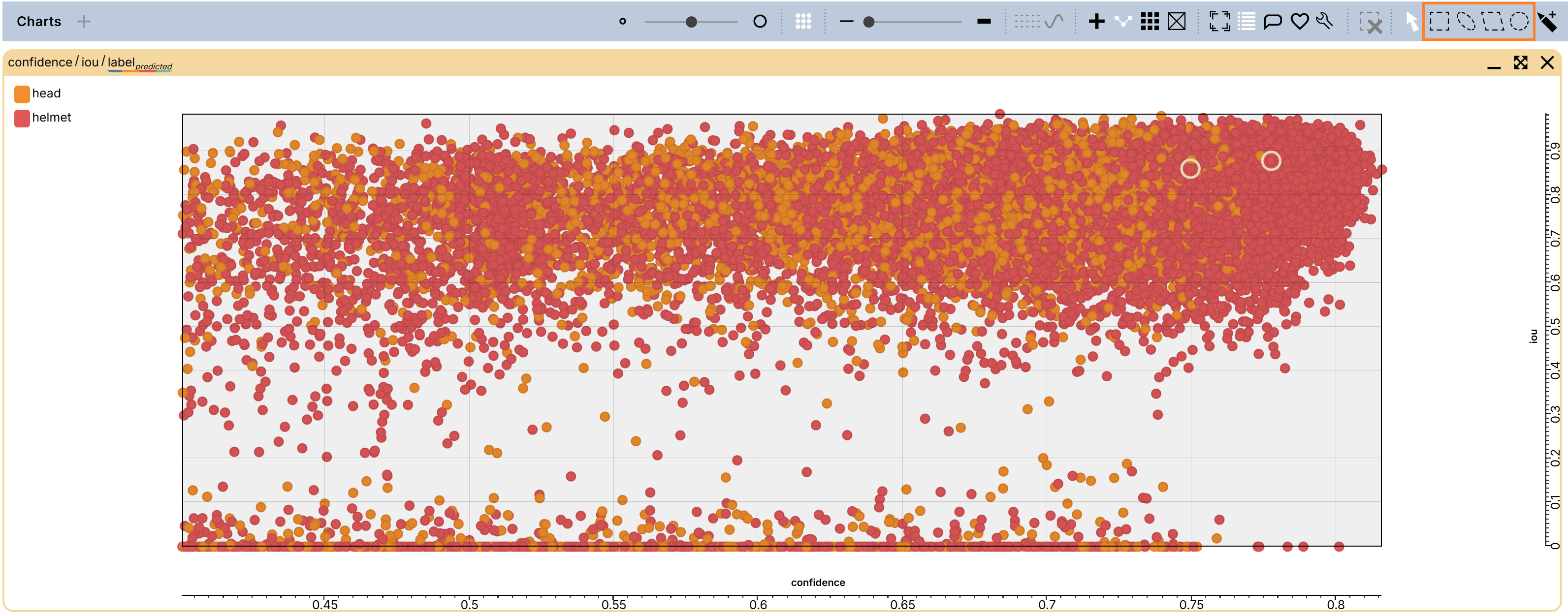
For example, select the lasso selection tool then draw a lasso outline in the area of interest in a chart. The data points inside the lasso outline will be filtered in and the rest will be filtered out.
Draw another lasso outline to overwrite the previous selection.
To make multiple lasso selections, draw the first one as usual, and draw other ones while holding CTRL.
To de-select some filtered-in data points, draw a lasso outline while holding SHIFT.
To clear all polygon selections, click the
Clear all polygon selectionsicon on the Charts Toolbar or press CTRL+D.
The operations above apply to all polygon selection tools.
Partially filtered-in samples across epochs
Imagine a scenario where you filtered some data points of interest using the filters and/or polygon selections and then
you want to look at how these filtered-in samples evolve across all epochs. You can use the chart tool
show partially filtered-in samples across epochs in the Charts Toolbar to expand these
filtered-in samples to all epochs. Turning on the connecting lines enables you to see the evolving path for a given
sample (right chart). For comparison, the left chart only shows the filtered-in samples by lasso selection on Epoch 4
(filtered).
Warning
Unlike other operations, such as switching to polygon selection, this operation applies only to the selected chart. It is also a visual-only enhancement limited to that specific chart that does not change the global filter state, which means those data points are not reflected in the Metrics panel or in other charts, and you cannot do further data manipulation (e.g. filtering) on those additional data points.