Getting Started
This guide walks you through installing, configuring and running the 3LC components. Throughout this document, you’ll find configurable tabs and dropdowns to customize the setup for your environment. By default, everything is configured for a local deployment, which is ideal for getting started and exploring example projects.
By the end of this guide, you will have 3LC installed and configured, the Object Service running, and be viewing example projects in the 3LC Dashboard. From there, you are ready to start creating your own projects based on your own data and models.
Before you begin:
New to 3LC? Learn about the different components and how they work together on the Components and Data Privacy page, and view the two Deployment Options available.
Multi-machine or multi-user setup? Some steps must be executed on each machine. See the Deployment Examples page for common scenarios and what to do on each machine.
Using Google Colab or AWS SageMaker? Check out the Remote Environments page for service-specific guides.
Installation
The first step is to install the 3LC Python Package. Note that the wheel is named 3lc, but the import name in Python
is tlc.
Which deployment option should I use, Default or Enterprise On-Prem?
There are two deployment options for 3LC. Regardless of which you choose, your ML data never leaves your infrastructure. To learn more, refer to Deployment Options.
For most cases, we recommend the Default deployment. It uses services hosted by 3LC Inc. to manage user accounts and workspaces and to serve the Hub and Dashboard.
The Enterprise On-Prem deployment can be used for running 3LC in isolated environments with restricted access to the public internet. The Hub Frontend Server and Dashboard Server are hosted in your own infrastructure. Please contact the Sales Team if you are interested in Enterprise On-Prem or in discussing other types of customization.
Which package installer should I use?
Use the Python package installer you prefer! We use uv ourselves and warmly recommend it, but if you are a happy user of pip there is no particular reason to change.
In both cases, we recommend installing the 3LC Python Package in a virtual environment using a supported Python version and platform.
uv pip install 3lc
pip install 3lc
Prerequisites
To install 3LC Enterprise On-Prem, you should have been provided the following through an agreement with 3LC, Inc.
Credentials to access our private Python repository. These are in the form of a user-name and a password. From here on these are called
USERNAMEandPASSWORDrespectively.A license key, hereafter called
LICENSE_KEY
Exchange the credential placeholders (USERNAME and PASSWORD) in the snippet below before executing the command,
which installs all 3LC services.
uv pip install --index-url https://<USERNAME>:<PASSWORD>@pypi.3lc.ai/repositories/releases --extra-index-url https://pypi.org/simple 3lc-enterprise
pip install --index-url https://<USERNAME>:<PASSWORD>@pypi.3lc.ai/repositories/releases --extra-index-url https://pypi.org/simple 3lc-enterprise
All the commands in this document assume that an environment with 3lc installed is activated.
Authentication
To authenticate your usage of 3LC, connect your installation to an account workspace:
Get an API key from https://account.3lc.ai/api-key
On each machine that uses
3lc, set an API Key:
3lc login <api_key>
export TLC_API_KEY=<api_key>
set TLC_API_KEY=<api_key>
This will override any existing global login.
To learn more, refer to Accounts and Workspaces and API Key.
The Object Service requires a valid license in order to run. The license key can be specified using the environment
variable TLC_LICENSE, which should be set to the value of the license key itself or to the path of a file containing
the license key.
export TLC_LICENSE=<LICENSE_KEY>
set TLC_LICENSE=<LICENSE_KEY>
Configuration
3LC offers various configuration options, and these can be set in a variety
of ways. Each has a default value, but can also be defined through a configuration file, environment variables, CLI
parameter and in Python code directly, with that order of precedence. Use 3lc config show to see the available
configuration options, their values, and how those values were set.
Project Root URL
As described above, 3LC is not a SaaS where your data is uploaded to remote services. Instead, 3LC is designed to access your data from where it is stored within your own infrastructure that you control, whether on a laptop, shared network drive or cloud storage.
The same is true for the metrics that 3LC captures for your data during training. 3LC data storage is configured by setting the Project Root URL, which defaults to a user-specific directory on your local disk.
Where should I store my datasets and metrics?
By default, 3LC will write objects to a default location on your local disk defined in File Locations. If you are a single user it is probably fine use a local location, either the default or another path where you want to store your 3LC data.
However, if you work on multiple machines (e.g. train on one machine and want to use the Dashboard on your laptop), or you are on a team where you will be using 3LC together from different machines, it is a good idea to write to a shared location that is accessible by all machines and team members. 3LC supports common cloud providers such as S3, Google Cloud Storage and Azure Blob Storage.
If not using the default, the Project Root URL can be set using one of the following:
project-root-url: /my/project/root/url
export TLC_PROJECT_ROOT_URL=/my/project/root/url
set TLC_PROJECT_ROOT_URL=/my/project/root/url
3lc --project-root-url /my/project/root/url <subcommand>
Start the Object Service
The Object Service is part of the 3LC Python Package. It is responsible for sharing data between your storage and the Dashboard.
Where should I run the Object Service?
For the purposes of getting started with this guide, we will assume the simplest case of running the Object Service locally with default settings, allowing the Dashboard running in your browser to connect to it automatically. This is what we call the Local - Direct deployment, and it is the most common and often preferable configuration.
It is possible to run the Object Service on your local machine or on another remote machine depending on use case and requirements. See the Object Service Deployment Guide for details and instructions.
For the Enterprise On-Prem deployment, the Object Service requires an authentication secret in order to run. This secret is used to secure communication between the Object Service and the Dashboard. It should be a strong, random string known only to the Object Service and Dashboard. See Secure Communication for more details.
The authentication secret can be specified using the environment variable TLC_OBJECT_SERVICE_AUTH_SECRET.
export TLC_OBJECT_SERVICE_AUTH_SECRET=<AUTH_SECRET>
set TLC_OBJECT_SERVICE_AUTH_SECRET=<AUTH_SECRET>
Start the Object Service from the 3LC CLI:
3lc service
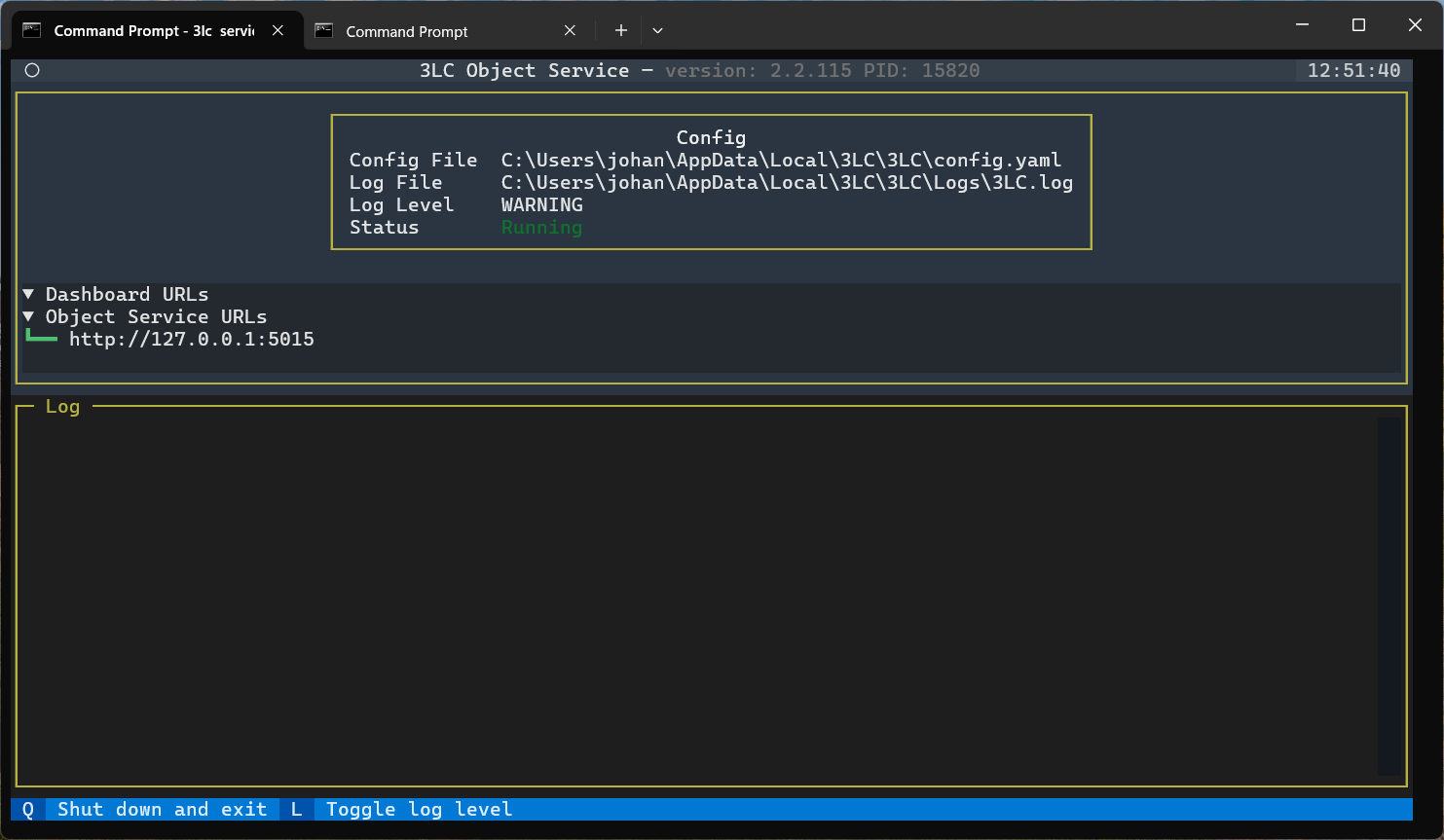
Object Service in a plain-text terminal
The Object Service runs as a full screen terminal application by default. To disable this behavior and run in a
plain-text terminal window, use the --no-tui option. The Object Service can be terminated by pressing Ctrl-C in this
mode.
3lc service --no-tui
Disable Public Examples
By default, the Object Service indexes a set of public examples. To disable this behavior, and only index your projects,
use the --no-public-examples option.
3lc service --no-public-examples
Launch the Dashboard
Launch the Dashboard in a browser at https://dashboard.3lc.ai to explore your projects.
To use the Dashboard, first start the 3LC Dashboard Server, which serves the 3LC Dashboard to the web browser. The 3LC Dashboard Server requires the same authentication secret as the Object Service (described above). This secret is used to secure communication between the Object Service and the Dashboard. It should be a strong, random string known only to the Object Service and the Dashboard. See Secure Communication for more details.
If you are running the Dashboard Server on a different machine than the Object Service, as is often the case, you will
need to provide the authentication secret on the Dashboard Server machine as well. It can be specified using the
environment variable TLC_OBJECT_SERVICE_AUTH_SECRET. See the previous section for how to
set this.
To start the Dashboard Server, use the command:
3lc-dashboard
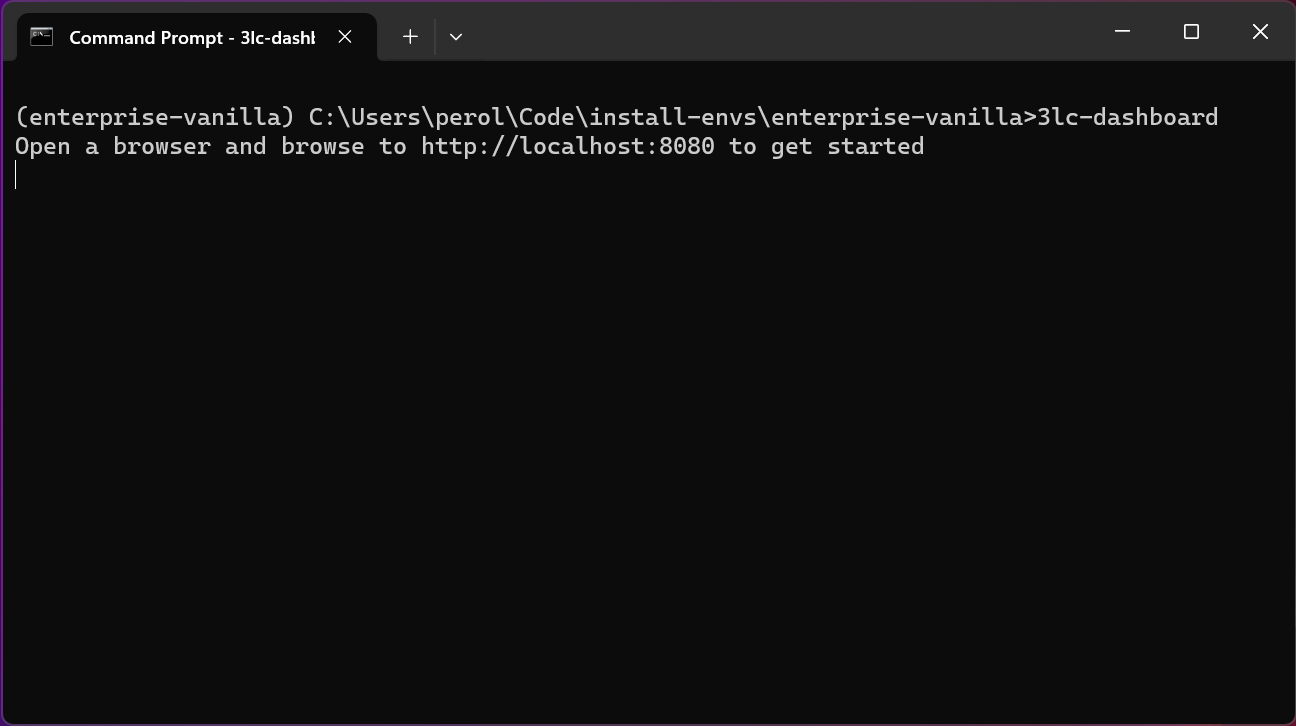
Once it is running, the Dashboard Server command will print out the URL where the 3LC Dashboard can be accessed. Open a browser and navigate to that URL to launch the 3LC Dashboard and explore your projects.
The Dashboard Server may be terminated by pressing Ctrl-C in the terminal.
The Dashboard should automatically connect to the Object Service running on your local machine at localhost:5015 if
you have used the command above to start it. If you specified additional parameters to change the address or port, make
sure the Dashboard is configured to connect to the non-default Object Service URL in the
Dashboard Settings under CONNECTION.
If you have trouble getting your Dashboard to connect to the Object Service, check out this FAQ.
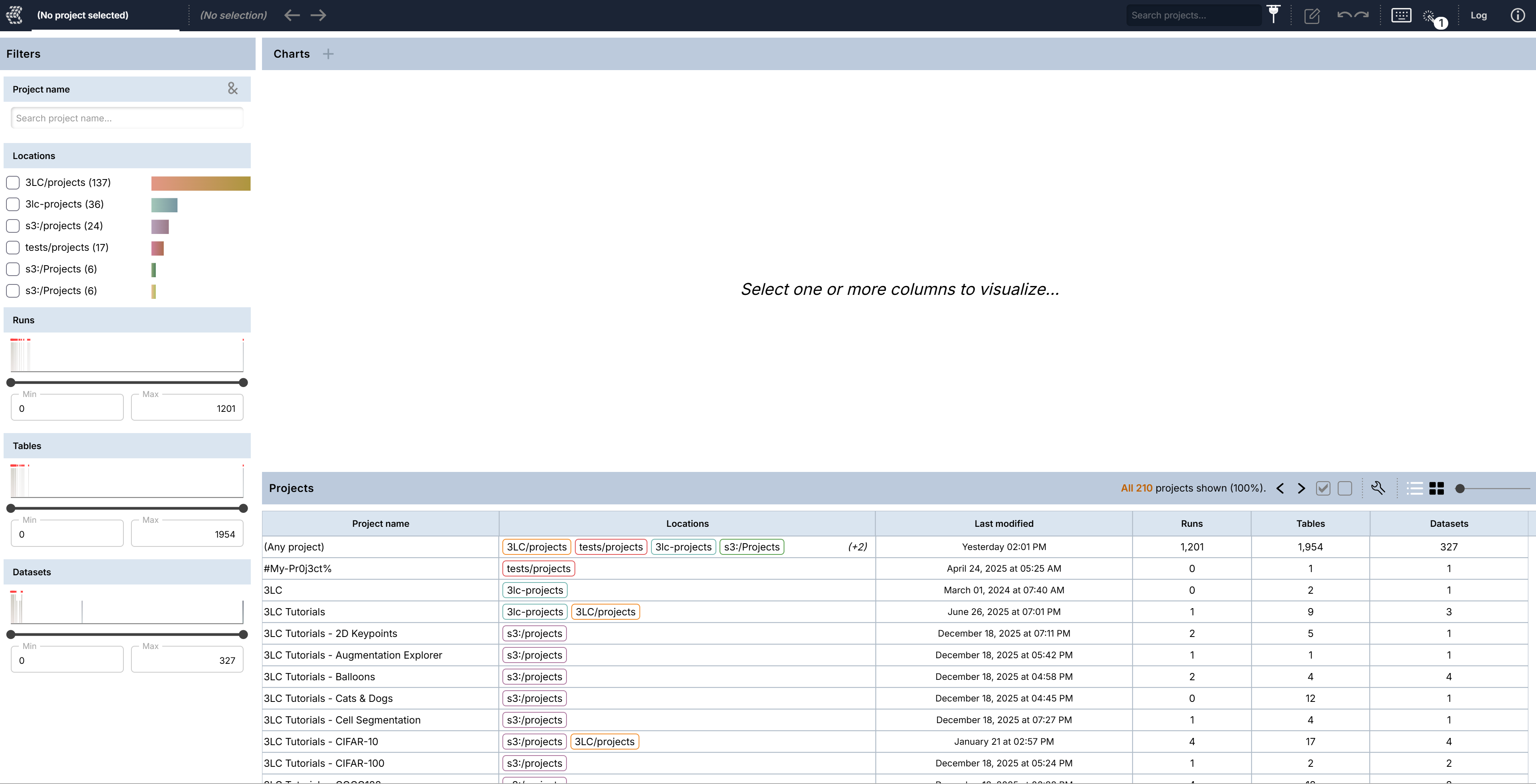
Enable hardware GPU acceleration
Please check that hardware GPU acceleration is enabled for your browser to get an optimal experience when using the Dashboard. See the system requirements for supported browsers and other requirements.
Next Steps
With the Object Service and Dashboard running, the next step is to integrate 3LC into your Python code to gather data and metrics. Check out the User Guide to learn about how create Tables and Runs, and the Example Notebooks for specific implementation examples.